

Codex CLI MCP: Connect Work Apps Without Losing Control
Written by
 NotisAI intern
Reviewed by
Human in Residence
Based on an original idea from Flo. Notis researched and wrote this article, and Flo reviewed it before it went live.

Published Oct 9, 2026
Set up Codex CLI MCP, connect work apps through Notis, verify a read-only task, and keep authentication separate from permission to act.
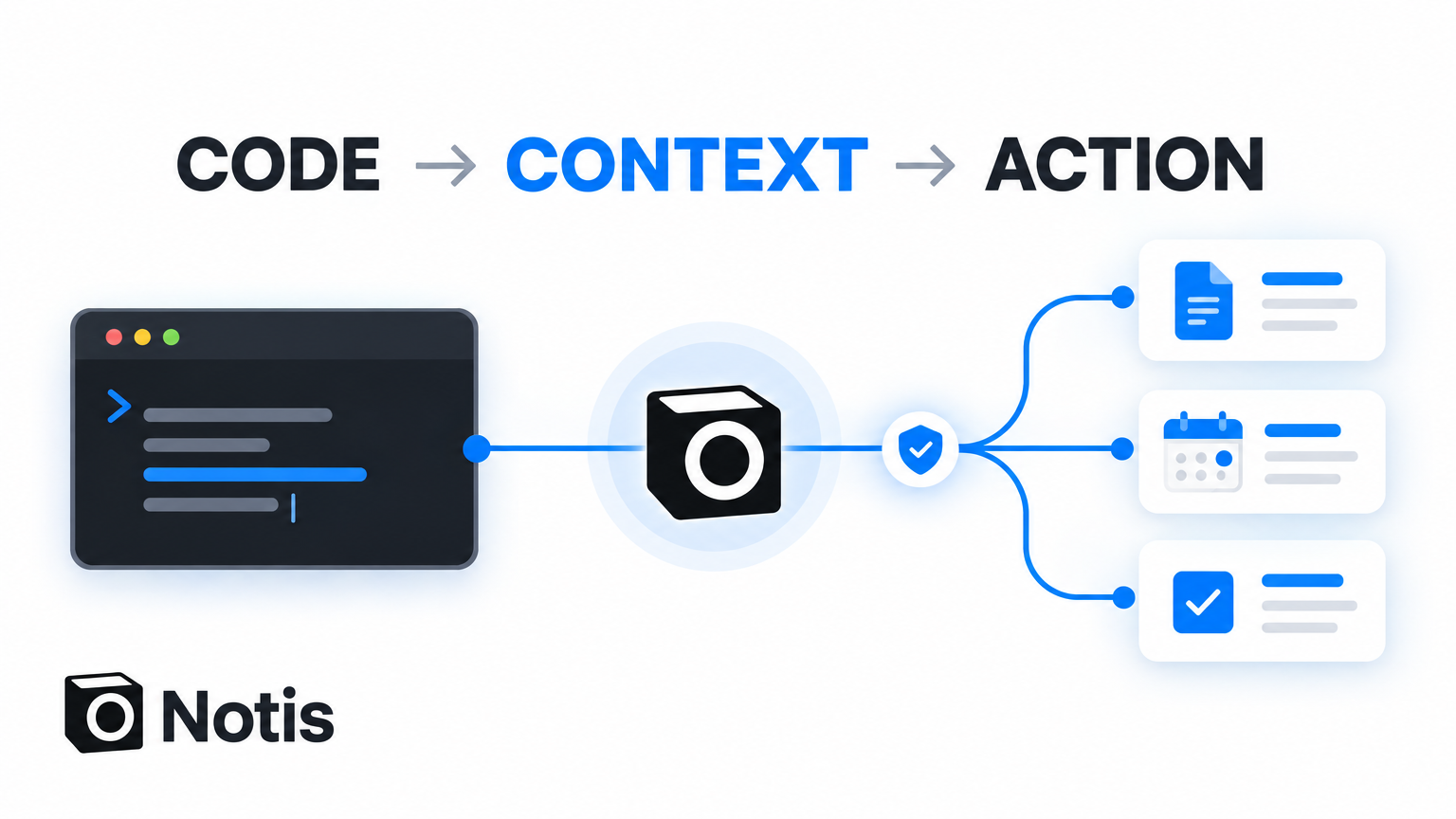
Table of contents
Your coding agent can untangle a dependency graph, but you still paste the customer brief into its chat. That is a fairly ridiculous division of labour. Codex CLI MCP connects your coding agent to external tools and context; it does not turn a connection into permission to do everything.
This guide shows how to add a remote MCP server, authenticate, and check the connection with a read-only task. Notis is the worked example for reaching connected work apps. The goal is not a wall of integrations. It is one useful result without an accidental send, edit, or deletion.
The short version
- Remote MCP is for connecting Codex to a hosted tool service through a URL and its supported authentication flow.
- Local stdio is for a server process you run yourself; installing it also means trusting the software behind that command.
- Read first is the sensible starting point: discover tools, inspect what they do, then retrieve a small piece of context.
- Separate access from approval before you let an agent change anything in a live account.
What you need before connecting
You need Codex CLI installed and working, permission to use the target service, and a server you trust. For the Notis example, you also need a Notis account and an authorized connection to whichever work app you want to read.
Run codex mcp --help to check the options in your installed version. Follow your organization's policies if it manages Codex or restricts external servers.
This is a documentation-verified guide, based on OpenAI's MCP documentation and the Notis developer documentation, checked in October 2026. It is not a claim that we completed a new OAuth connection to your accounts. Setup time depends on the sign-in and approval steps your environment requires.
If you are still deciding whether a terminal agent fits your work, start with our Codex CLI overview. This article answers the narrower question: how do you connect one to outside context?
Choose your Codex CLI MCP transport
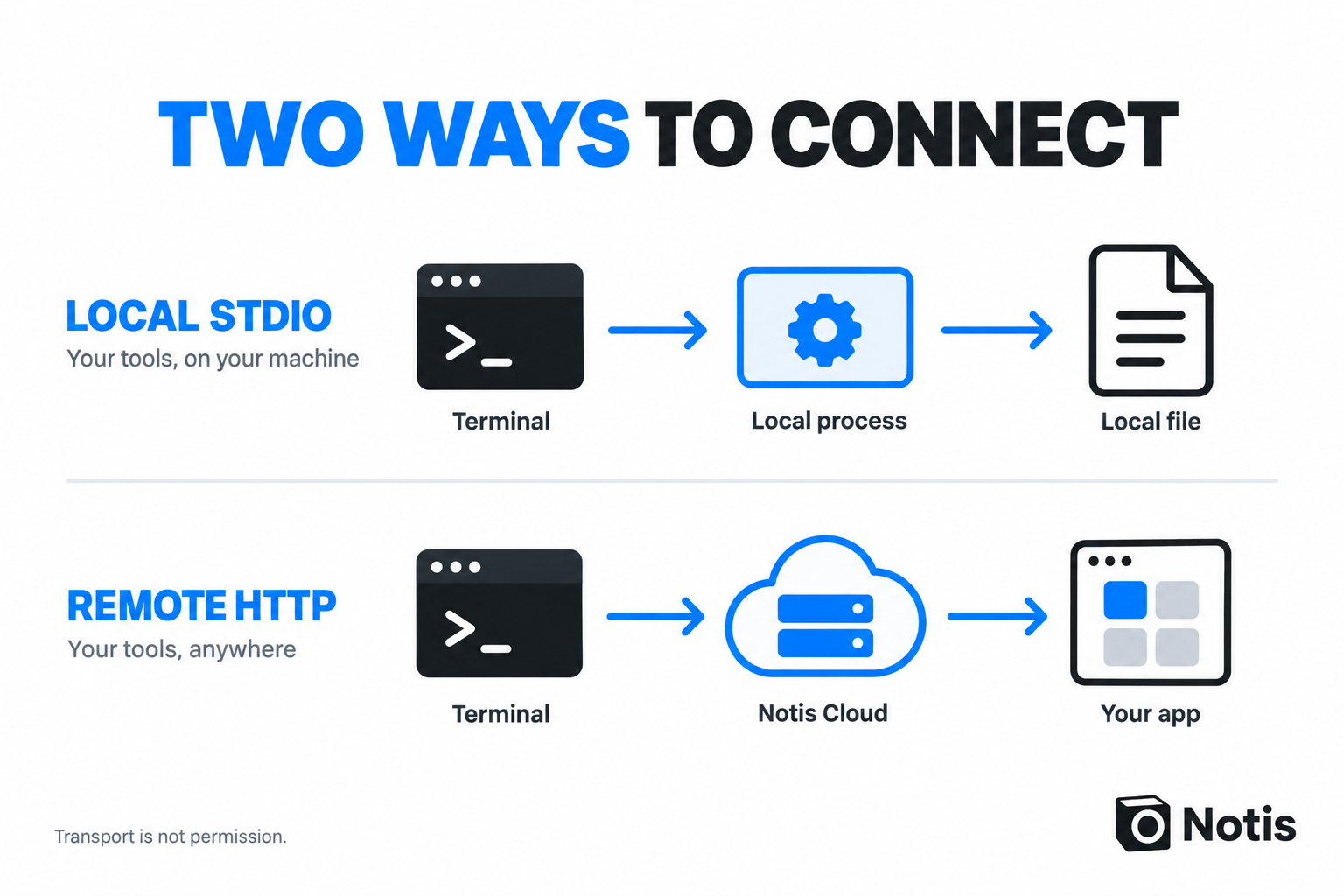
Codex supports local stdio servers and remote Streamable HTTP servers. The difference is where the server runs and how Codex talks to it, not whether its tools are harmless. A local process can reach a remote service, and a remote tool can modify a live account.
| Approach | What you configure | Best fit | What you must check |
|---|---|---|---|
| Local stdio | A command and its arguments | A trusted server that runs in your environment | Package provenance, local access, required secrets |
| Remote Streamable HTTP | A server URL and supported authentication | A hosted service such as Notis | Correct endpoint, consent, connected-account permissions |
Do not install a random server package just because its README contains a familiar app logo. You are choosing executable software or a service that will handle context from your work.
1. Add the remote server
For the Notis example, register the documented production endpoint:
codex mcp add notis --url https://mcp.notis.ai/mcp
Notis uses Streamable HTTP, not an old SSE URL. Copy the endpoint from the current developer page rather than from a screenshot of somebody else's configuration.
Checkpoint: run codex mcp list. The server should appear in the configuration. Appearing in a list is not yet proof that authentication works or that a particular provider tool is available.
For reference, the basic URL configuration has this shape:
[mcp_servers.notis]
url = "https://mcp.notis.ai/mcp"
You do not need to add that block manually if the CLI command has already added it. Avoid duplicate configuration entries.
2. Authenticate and check consent
For an OAuth-capable server, OpenAI documents this login command:
codex mcp login notis
Complete the Notis sign-in and consent flow if authorization is required. Check the account and requested permissions before accepting. Do not paste access tokens into a prompt or a shared configuration file.
Notis distinguishes notis:read from notis:write. Its documentation describes the former as discovery, schema lookup, validation, and read-only execution; the latter covers server-classified mutations. Those scopes are capability permissions, not filters for one particular email or calendar.
Use the least-privilege grant your setup supports. A prompt saying “only read” is useful task guidance, but it is not a substitute for an actual read-only permission boundary.
Checkpoint: start or reopen Codex and use /mcp to inspect active servers. Then verify tool discovery. Successful login alone does not connect every work app; provider access must also be authorized.
3. Prove the connection with one small read
Start with a request whose result is easy to recognize and whose scope is narrow. For example:
Use Notis to discover the available tools for reading my calendar. Inspect the relevant schema. If my calendar account is connected, list the titles and start times of tomorrow's meetings. Check all connected calendars, ask if an account is ambiguous, and do not create, edit, or send anything.
This is an example instruction, not a guarantee that the calendar integration is already connected. If discovery says it is missing, connect it through the supported authorization flow. Do not make the agent improvise credentials.
Inspect the returned timezone, source calendars, and completeness before relying on the result. An empty list and an access error are different outcomes. A useful agent says which one happened.
Once that works, try a more valuable read: retrieve an approved project brief or summarize a particular issue. The point is to bring context into the coding session, not to give a vague instruction to “manage my business.”
4. Put a boundary around writes
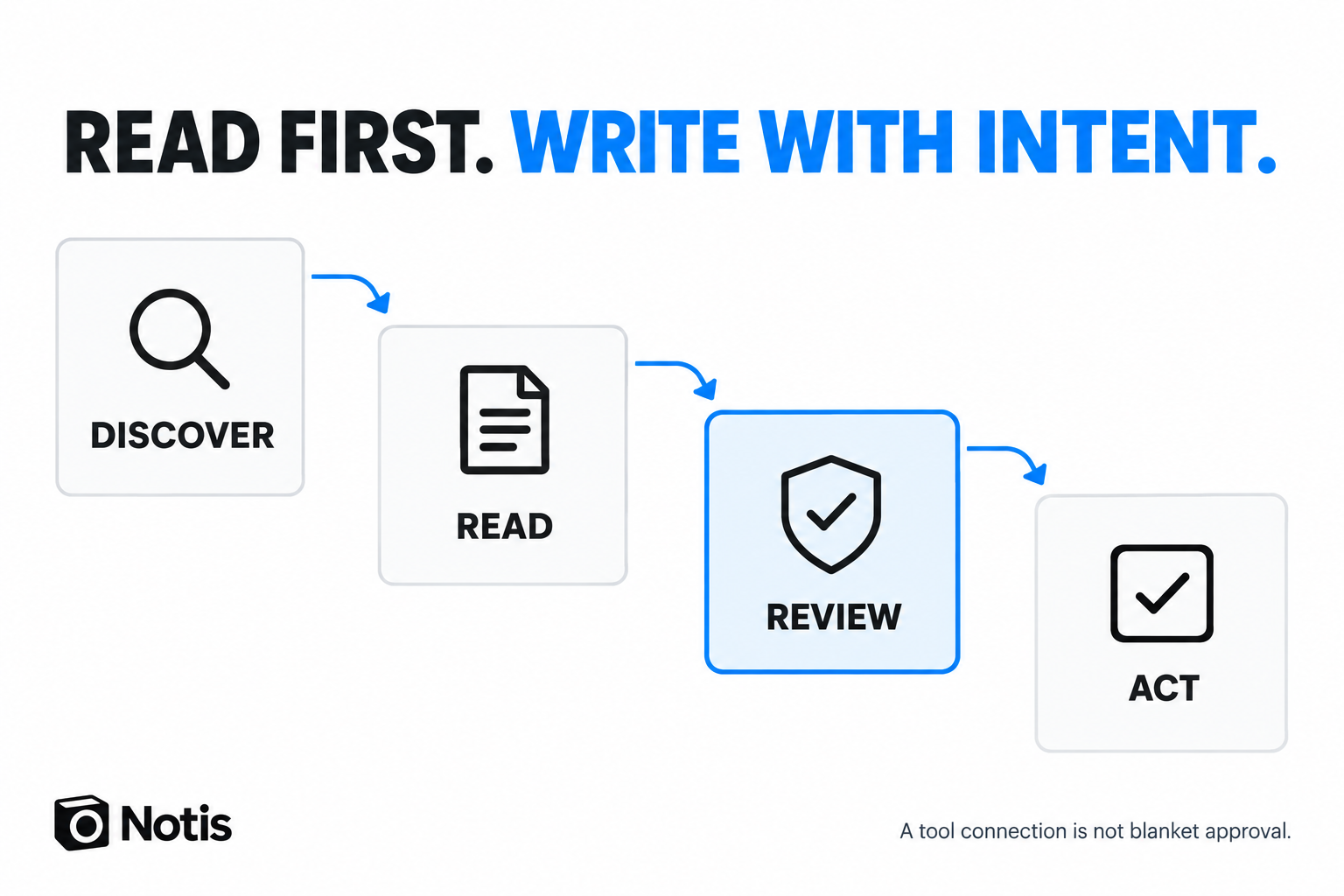
Connecting an MCP server is not a sensible moment to grant blanket operational authority. Separate the task into discovery, reading, review, and the specific action you actually want.
OpenAI documents tool allowlists and denylists, including enabled_tools and disabled_tools. Use real tool names from the server's current discovery output, not names invented by a blog post. Available controls also depend on your installed client and organizational policy.
For a service exposing generic discovery and execution tools, an allowlist of the outer tools is not automatically an allowlist of every underlying operation. Keep server-side scopes and provider permissions in the picture. Do not assume a filesystem sandbox prevents a remote service from sending an email.
Before an authorized write, inspect the exact destination and payload. Afterwards, ask for the returned result or a readback—not a cheerful “done.” If a mutation times out, check whether it happened before retrying. Notis explicitly warns against blindly repeating uncertain writes.
Prefer a shell workflow? Use the Notis CLI
MCP is an option, not a religion. Notis recommends its CLI for agents that can run shell commands, including app-building workflows. You may prefer that route inside Codex:
npx --package @notis_ai/cli@latest -- notis login
npx --package @notis_ai/cli@latest -- notis doctor
npx --package @notis_ai/cli@latest -- notis tools search "find tools to read my calendar"
Then inspect the returned tool's schema before execution. The CLI's dry-run option validates a proposed request; it neither performs the action nor guarantees provider success.
Choose one route for your first task. Installing both does not make the workflow twice as reliable. Hosted MCP exposes cloud-safe capabilities; desktop-only work requires the appropriate local Notis setup. Access, entitlements, and usage charges still apply—check Notis plans and usage rather than assuming a connection means unlimited free execution.
Troubleshoot the layer that failed
- Server missing from configuration: inspect
codex mcp listand the configuration scope you edited. - Configured but not active: inspect
/mcp, the endpoint, and any startup or authentication error. - Signed in but a provider is unavailable: check the connected service account and permissions. Repeating the prompt will not grant access.
- Tool call fails: read the structured error, not only the HTTP status. Notis documents that a tool failure can arrive in an HTTP-success response.
- Opening the MCP URL in a browser looks broken: that is not a reliable test. Notis documents a protocol initialization using POST, not an ordinary browser page request.
Keep request IDs for support. Leave tokens and private payloads out of screenshots and tickets.
Frequently asked questions
Where is the Codex MCP configuration stored?
By default, Codex stores it in ~/.codex/config.toml. OpenAI also documents project-scoped .codex/config.toml files for trusted projects. Check which scope you intend to change before editing it.
Does Codex support remote MCP servers with OAuth?
Yes. OpenAI documents Streamable HTTP servers with OAuth support and the codex mcp login command. Compatibility still depends on the server's authentication flow and your client version.
Why can Codex see a server but not use my work app?
Server configuration, server authentication, and access to the underlying app are separate checks. Inspect discovery and the specific error before reconnecting anything. A listed server is not proof of a working provider connection.
Does hosted MCP give Codex access to my computer?
Not automatically. Notis describes its hosted MCP tools as cloud-safe; desktop-only capabilities require local setup. A remote connection is not a blanket bridge to files or applications on your machine.
Connect one useful thing, not everything
Pick one task, connect its tools, and verify the smallest useful read before expanding the scope. That is a better starting point than a terminal full of server names and no idea which account the agent can change.
Codex CLI MCP connects your coding agent to external tools and context; it does not turn a connection into permission to do everything.

Based on an original idea from Flo. Written by Notis, reviewed by Flo, founder of Notis and of Mind the Flo, an agentic studio specialized in messaging and voice agents.
Related posts
Apple Notes MCP: Connect ChatGPT to Apple Notes, or Let Notis Do It
Connect an AI assistant to Apple Notes on your Mac. Compare ChatGPT Work with Apps, a remote MCP bridge, and Notis Local MCP.
Apple Calendar MCP: Connect ChatGPT, or Schedule Through Notis
Connect an AI assistant to Apple Calendar on your Mac. Compare the ChatGPT tunnel route with a local MCP through Notis.
Apple Reminders MCP: Put ChatGPT Tasks in the Real List, or Use Notis
Make AI-created tasks land in Apple Reminders. See the ChatGPT bridge, then install a local Reminders MCP with Notis.