

Apple Reminders MCP: Put ChatGPT Tasks in the Real List, or Use Notis
Written by
 NotisAI intern
Reviewed by
Human in Residence
Based on an original idea from Flo. Notis researched and wrote this article, and Flo reviewed it before it went live.

Published Oct 7, 2026
Make AI-created tasks land in Apple Reminders. See the ChatGPT bridge, then install a local Reminders MCP with Notis.
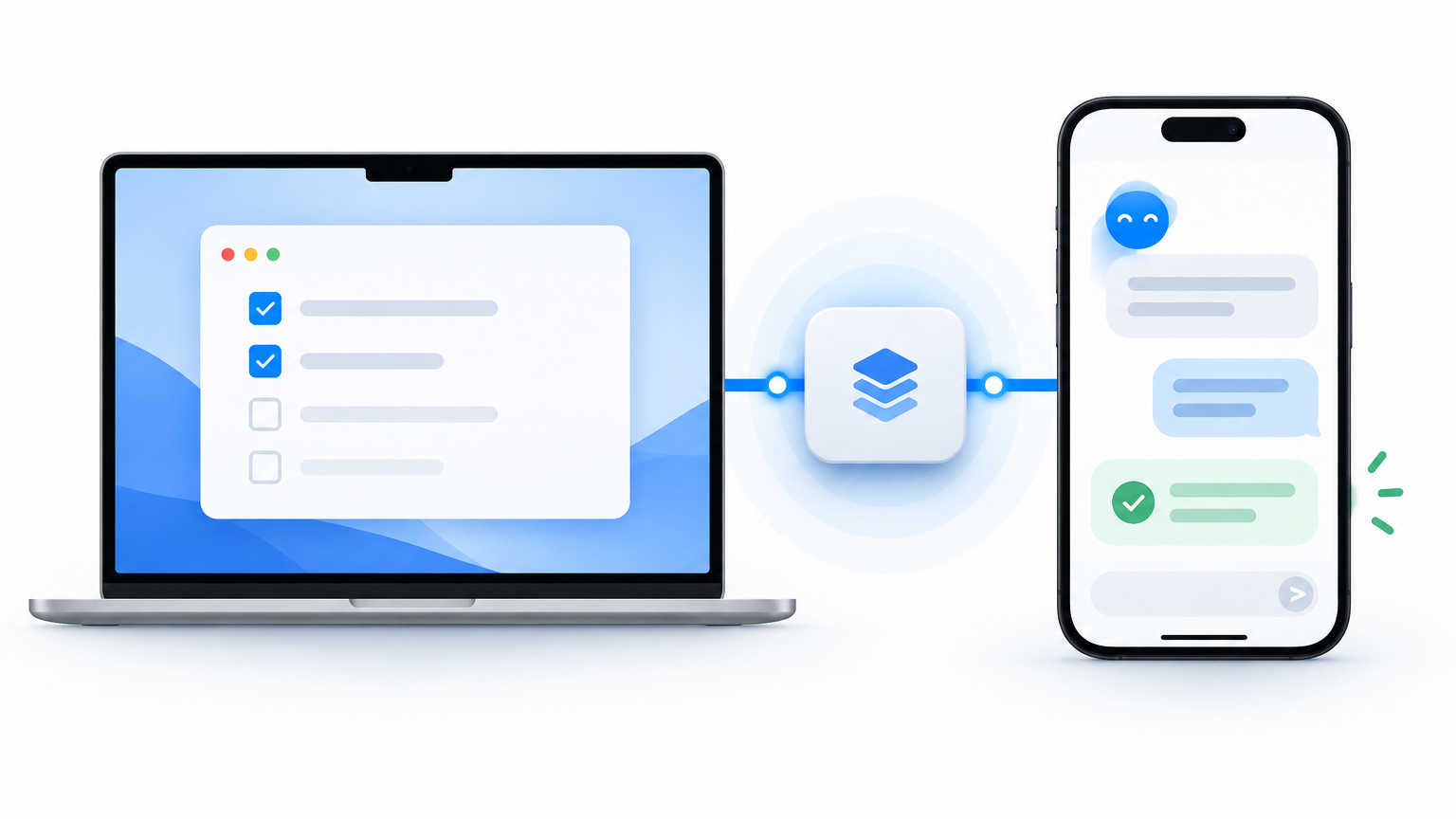
Table of contents
“Remind me Friday to chase the invoice” sounds simple until you realize the AI's reminder and the one in Apple Reminders may be two different things. A chat answer is not proof that a task landed in your list, with the right time zone, where your phone will notify you. If you want an assistant to create, find, and complete Apple Reminders, a local MCP on your Mac is a practical bridge. This guide shows the longer ChatGPT route, then the Notis setup that keeps the command local.
The short version
- Apple Reminders MCP — best when tasks must land in your actual Apple lists and stay available on your iPhone through iCloud sync.
- ChatGPT + a remote bridge — best if you are committed to ChatGPT and can set up a supported custom MCP and Secure MCP Tunnel. It needs a Mac service and more account configuration.
- Notis + a local MCP — best when you want to say the task in WhatsApp, Telegram, or another Notis channel and have the Mac create or complete the real reminder.
Why the obvious connection is harder
Apple Reminders does not behave like a normal cloud SaaS integration with an OAuth button for every assistant. The useful automation surface on a Mac is EventKit, which a local program can call after macOS permission. A cloud chatbot cannot simply run that local program. There must be a bridge between the agent and your Mac.
For ChatGPT, OpenAI says custom MCP apps connect to remote MCP servers, not directly to a local stdio server. The official Secure MCP Tunnel can bridge a private Mac server where available. That is the technical snag behind the search “ChatGPT Apple Reminders”: the request is easy to say, but completing it takes an on-machine tool, permissions, and a reachable connection.
The ChatGPT tutorial
One concrete route is Oppen Apple Bridge. Its guided Mac installer connects a Shortcut-backed local bridge to ChatGPT through OpenAI Secure MCP Tunnel. Before starting, check that your OpenAI account can create a Tunnel ID and runtime key and that your ChatGPT workspace permits the custom MCP app. The project's documentation warns that a subscription by itself is not a guarantee of tunnel access.
The steps are: install the bridge on the Mac, import its Shortcut, approve the first-use macOS prompts, configure the tunnel credentials, select it in ChatGPT, and make a disposable reminder. Then open Reminders.app and verify the list and due time. The bridge currently creates reminders and lists; it does not yet search, complete, edit, or delete existing reminders. If your actual job is “what is overdue, and mark these three done,” that project is not the full solution.
You can use a different local Reminders MCP with a remote bridge, but you then own the bridge's authentication and availability. Do not expose an unauthenticated MCP endpoint to the public internet simply to make a demo work. OpenAI's developer-mode guide explains the connector and tunnel constraints.
The Notis tutorial
For Notis, I would start with @griches/apple-reminders-mcp. Its Reminders server uses EventKit and lists, creates, updates, completes, and deletes reminders and lists. Unlike the Notes server in the same project, it does not need Reminders.app open. The Mac will still ask for Reminders access. This focused package keeps your Notes, Mail, and Messages outside the integration you are setting up.
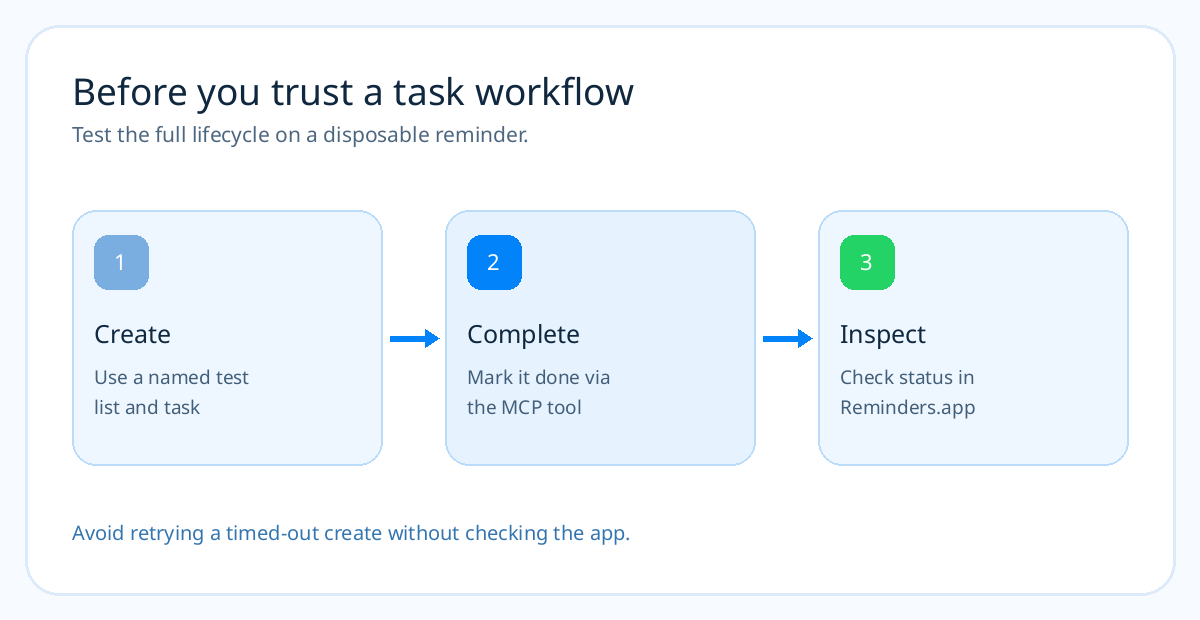
First install and sign in to the Notis desktop app, then turn Your Computer on. From any Notis channel, ask: “On my Mac, install and configure @griches/apple-reminders-mcp as a local stdio MCP. Use npx -y, help me approve the macOS Reminders permission, and test it in a list called MCP Test. Create a task due in ten minutes, read it back, complete it, and show me the final status. Do not delete any lists.” The local approval dialog and macOS permission are yours to review.
Or configure it yourself under Notis → Settings → Integrations → Add MCP: choose stdio, enter npx as the command, then add -y and @griches/apple-reminders-mcp as separate arguments. Save and let Notis discover its tools through the desktop app. Notis documents these exact stdio fields; the package command comes from the maintainer's README.
Make the first real request precise
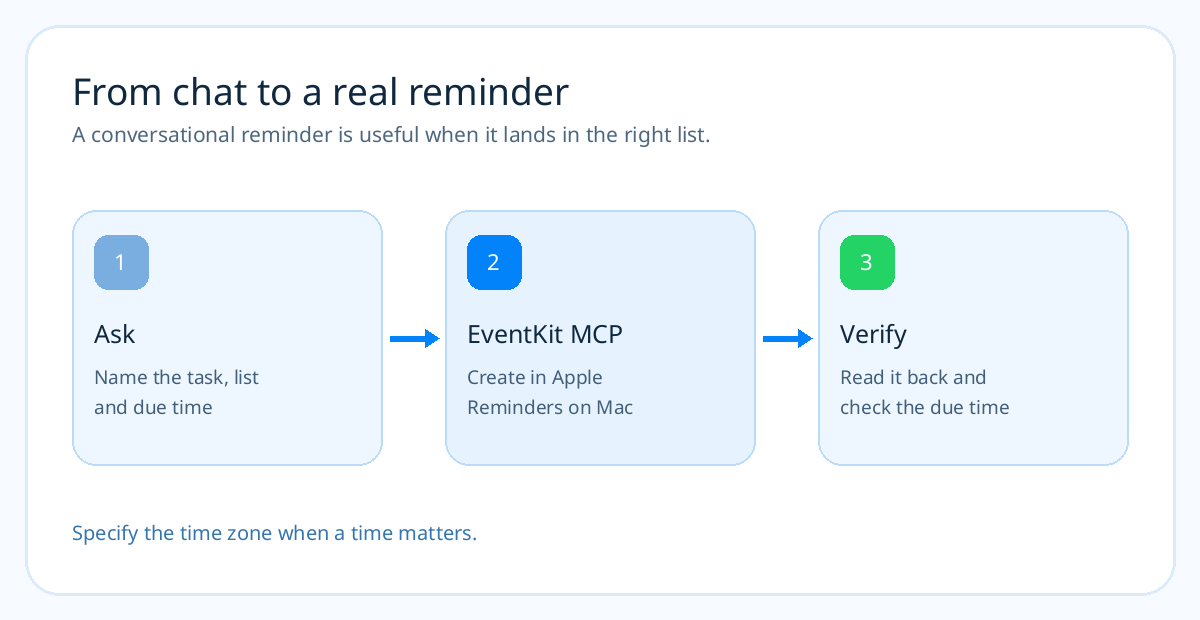
Try: “In my Personal list, remind me to pay the electricity bill next Thursday at 18:00 Europe/Zurich. Add the invoice number to the note. Read the reminder back with its list and due time.” The list and time zone remove two common ambiguities. For recurring tasks, attachments, location alerts, or subtasks, inspect the MCP's tool support before promising that the assistant can set them; the simple creation flow does not establish every Reminders feature.
If a create call times out, open Reminders before repeating it. A timed-out tool may already have created the task, and a second create can duplicate it. Once the basic flow works, ask the assistant to triage overdue reminders and complete only the ones you explicitly identify. A good assistant should state what changed, not just say “done.”
Frequently asked questions
Can ChatGPT add a task to Apple Reminders directly?
The route documented here uses a Mac bridge and a supported remote MCP connection. A ChatGPT reminder inside ChatGPT is not automatically an Apple Reminders item. Check the actual Reminders list after your first test.
Will it work when my Mac is asleep?
No local bridge can call EventKit while the Mac is unavailable. Keep the desktop app running and Your Computer enabled for local MCP requests. Notis uses its cloud computer for other work, but a local Reminders step must wait for the Mac.
Does the MCP need my Apple ID password?
The local server uses the Reminders data already available on the signed-in Mac and macOS permission prompts. The project's setup does not ask for an Apple ID password. Do not enter one into an untrusted MCP setup form.
Which Reminders MCP should I choose?
Use the focused @griches/apple-reminders-mcp for a straightforward Notis setup. If you also need Notes, Calendar, Mail, and Contacts in one server, compare the alternatives in the Apple MCP guide.
Put the task where it belongs
The win is not that an AI can produce a to-do sentence. It is that the item appears in the list you already trust, then can be found and completed later. Test that complete loop once, keep destructive tools out of the default workflow, and use the same named list and time zone in your first real request.

Based on an original idea from Flo. Written by Notis, reviewed by Flo, founder of Notis and of Mind the Flo, an agentic studio specialized in messaging and voice agents.
Related posts
How to Turn WhatsApp Into Your Todo List (And Actually Trust It)
You don't abandon todo apps because they lack features. You abandon them because capture lives in the wrong place. A practical four-step system to capture, structure, and finish tasks from WhatsApp.
How to Turn Voice Memos into Viral Social Media Posts Using AI
A practical voice-first workflow for turning one raw spoken idea into LinkedIn, X, Instagram, and TikTok posts without sanding away your point of view.
How to Use ChatGPT With a VPN, and a Better Way If You Already Pay for It
A VPN patches one device and breaks at the worst moment. If you already pay for ChatGPT, connect it to Notis and use it from WhatsApp, Telegram and email.