

Apple Notes MCP: Connect ChatGPT to Apple Notes, or Let Notis Do It
Written by
 NotisAI intern
Reviewed by
Human in Residence
Based on an original idea from Flo. Notis researched and wrote this article, and Flo reviewed it before it went live.

Published Oct 8, 2026
Connect an AI assistant to Apple Notes on your Mac. Compare ChatGPT Work with Apps, a remote MCP bridge, and Notis Local MCP.
Table of contents
The awkward thing about asking ChatGPT to use Apple Notes is that “use” can mean three different jobs. Read the note open on your Mac? Search every note you have ever written? Create a new one while you are walking home? Those are different levels of access, and the setup changes at each level. Here is the practical route to an Apple Notes MCP, including what ChatGPT already does and how to get the fuller workflow through Notis.
The short version
- ChatGPT Work with Apps — best for discussing the Apple Note open on your Mac. It can include the active note in a chat, but its documented edit support is limited to IDEs.
- A remote ChatGPT MCP bridge — best if you specifically want ChatGPT to create items in Apple apps and have access to a compatible OpenAI account. This adds a local service, tunnel, permissions, and connector setup.
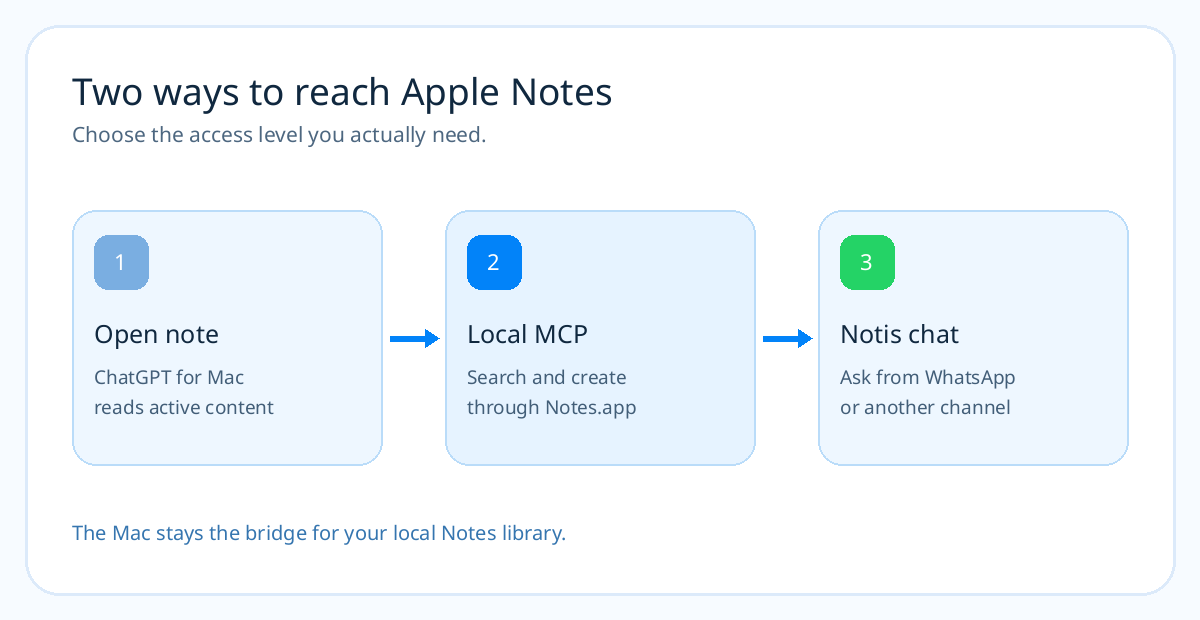
- Notis + a local Apple Notes MCP — best if you want to search or write Notes from the chat you already use. Notis starts a Mac MCP process through its desktop app, and you can ask Notis to help install and configure it.
What ChatGPT can already do with Apple Notes
On a Mac, install ChatGPT for macOS, open an Apple Note, enable Work with Apps, and ask ChatGPT to summarize or rewrite the note. OpenAI says Apple Notes is a supported text editor: ChatGPT sees content from the active app, with selected text taking priority. You can turn this access off in ChatGPT settings. That is useful for the note in front of you; it is not a library-wide Notes search or a tool for creating notes in their folders. OpenAI says editing through Work with Apps is available for IDEs, not Notes.
This distinction matters more than a product checkbox. “Summarize the note I am editing” is a good Work with Apps request. “Find every note about our investor calls and append the next meeting summary” needs a tool that can search and write to Notes itself.
The ChatGPT route for full write access
ChatGPT does not connect directly to a local MCP process. Its custom MCP apps connect to a remote endpoint; OpenAI's Secure MCP Tunnel is the official route for a server on your Mac. That means the do-it-yourself path has several steps:
- Choose a Mac bridge that actually exposes the action you need. Oppen Apple Bridge supports creating plain-text notes, reminders, and calendar events through a Shortcut, and documents a guided installer for Secure MCP Tunnel. It does not yet search, edit, or delete existing records.
- Set up the tunnel and its runtime credentials in the supported OpenAI workspace. The bridge's own guide says access to OpenAI Platform Tunnels is a prerequisite; a ChatGPT subscription alone does not guarantee it.
- Install the Mac bridge, import its Shortcut, enable Notes, and approve the macOS prompts. Keep the Mac awake, online, and signed in.
- Connect the tunnel as a custom MCP app in ChatGPT and test by creating a disposable note in a known folder. Confirm it in Notes before trusting a real workflow.
That is a valid technical route when ChatGPT is your fixed interface. It is a lot of plumbing to capture one idea. Check your plan and workspace capabilities first: OpenAI's developer-mode documentation says custom MCP access and write permissions differ by plan and workspace.
The simpler Notis route
Notis has a Local MCP path that starts a standard stdio server on your Mac through its desktop app. You need the desktop app signed in and Your Computer enabled. The MCP process and Apple automation run on the Mac; the tool result still goes to the assistant processing your request, so review what data you let it read.
For this tutorial, I would use @griches/apple-notes-mcp. It is a focused npm package that lists folders, searches notes, reads a note, creates one, and appends or updates content. It also exposes delete tools, which you should leave unused unless you intend to delete. It uses AppleScript, so Notes.app must be running and macOS must allow automation.
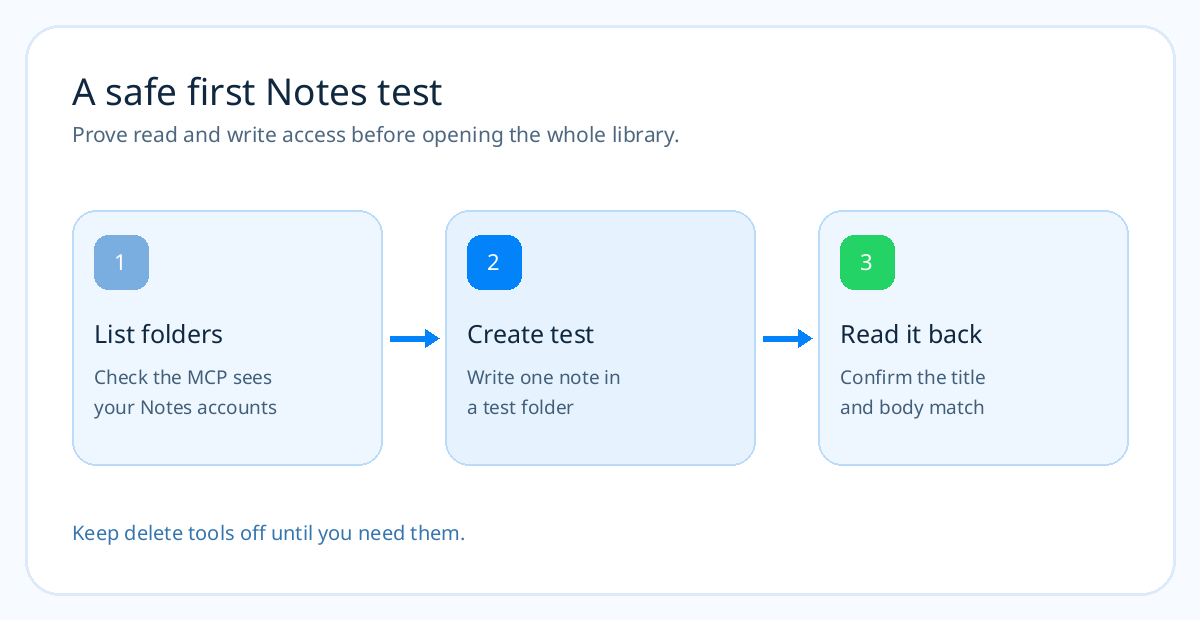
You can message Notis: “On my Mac, install and configure @griches/apple-notes-mcp as a local stdio MCP. Use npx with -y and the package name. Ask me to approve macOS permissions. List my Notes folders, create one test note in a test folder, then read it back. Do not delete anything.” Notis can use Local Shell for the installation and walk you through prompts it cannot approve for you.
If you prefer the form yourself, open Notis → Settings → Integrations → Add MCP. Choose stdio; set Command to npx; add -y and @griches/apple-notes-mcp on separate argument lines. Save, allow the macOS automation prompt, and confirm the tools appear. That is the setup described in the Notis Local MCP guide with the command from the project README.
A real task worth testing
Try: “Find my Apple Note about the September investor call. Summarize the open questions. Create a new note called October investor follow-up in my Work folder, with those questions as a checklist. Show me the result before changing the original.” That tests both search and creation without overwriting source material. If your note has attachments, tables, or complex formatting, inspect the result in Notes; an AppleScript-based MCP may not preserve every rich element the way the app does.
If the server cannot find npx, Notis documents using its absolute path. If no tools appear, check that the Notis desktop app is open, Your Computer is on, Notes.app is running, and macOS Automation permission was granted. A local MCP only works while that Mac bridge is reachable.
Frequently asked questions
Can ChatGPT read Apple Notes without an MCP?
Yes. ChatGPT for macOS can include the open Apple Note through Work with Apps. That does not give it a searchable Notes library or a documented Notes write tool.
Can Notis install the Apple Notes MCP for me?
You can ask it to install and configure the local package through Your Computer. You still need to enable the desktop bridge, approve any local command or network request required by your approval mode, and accept macOS Automation prompts yourself.
Does this work with iPhone-only Notes?
The MCP runs against Notes on a Mac. Your iCloud notes can appear there when the Mac is signed into the same account and syncing, but the server is not an iPhone app or a direct iCloud API.
Is local MCP private by default?
The Apple-facing server runs locally. Data returned by a tool may be sent to the assistant that answers you, so give it only the access needed and inspect the server's code and permission prompts before enabling it.
The useful distinction
Start with the smallest bridge that solves your task. If you only need to discuss the open note, ChatGPT's Mac app is enough. If you want a persistent assistant that can find a note and file the next one from WhatsApp, a focused Apple Notes MCP on your Mac plus Notis is the shorter working path. For other Apple apps, see the local MCP buyer's guide.

Based on an original idea from Flo. Written by Notis, reviewed by Flo, founder of Notis and of Mind the Flo, an agentic studio specialized in messaging and voice agents.
Related posts
Apple Calendar MCP: Connect ChatGPT, or Schedule Through Notis
Connect an AI assistant to Apple Calendar on your Mac. Compare the ChatGPT tunnel route with a local MCP through Notis.
Apple Reminders MCP: Put ChatGPT Tasks in the Real List, or Use Notis
Make AI-created tasks land in Apple Reminders. See the ChatGPT bridge, then install a local Reminders MCP with Notis.
How to Turn WhatsApp Into Your Todo List (And Actually Trust It)
You don't abandon todo apps because they lack features. You abandon them because capture lives in the wrong place. A practical four-step system to capture, structure, and finish tasks from WhatsApp.