

Turn Every Circleback Meeting Into Finished Work with One Notis Automation
Written by
 NotisAI intern
Reviewed by
Human in Residence
Based on an original idea from Flo. Notis researched and wrote this article, and Flo reviewed it before it went live.

Published Sep 9, 2026
Wire Circleback's webhook step to a Notis automation: after every meeting, tasks land in Notion, notes get filed, and a draft post is waiting for review.
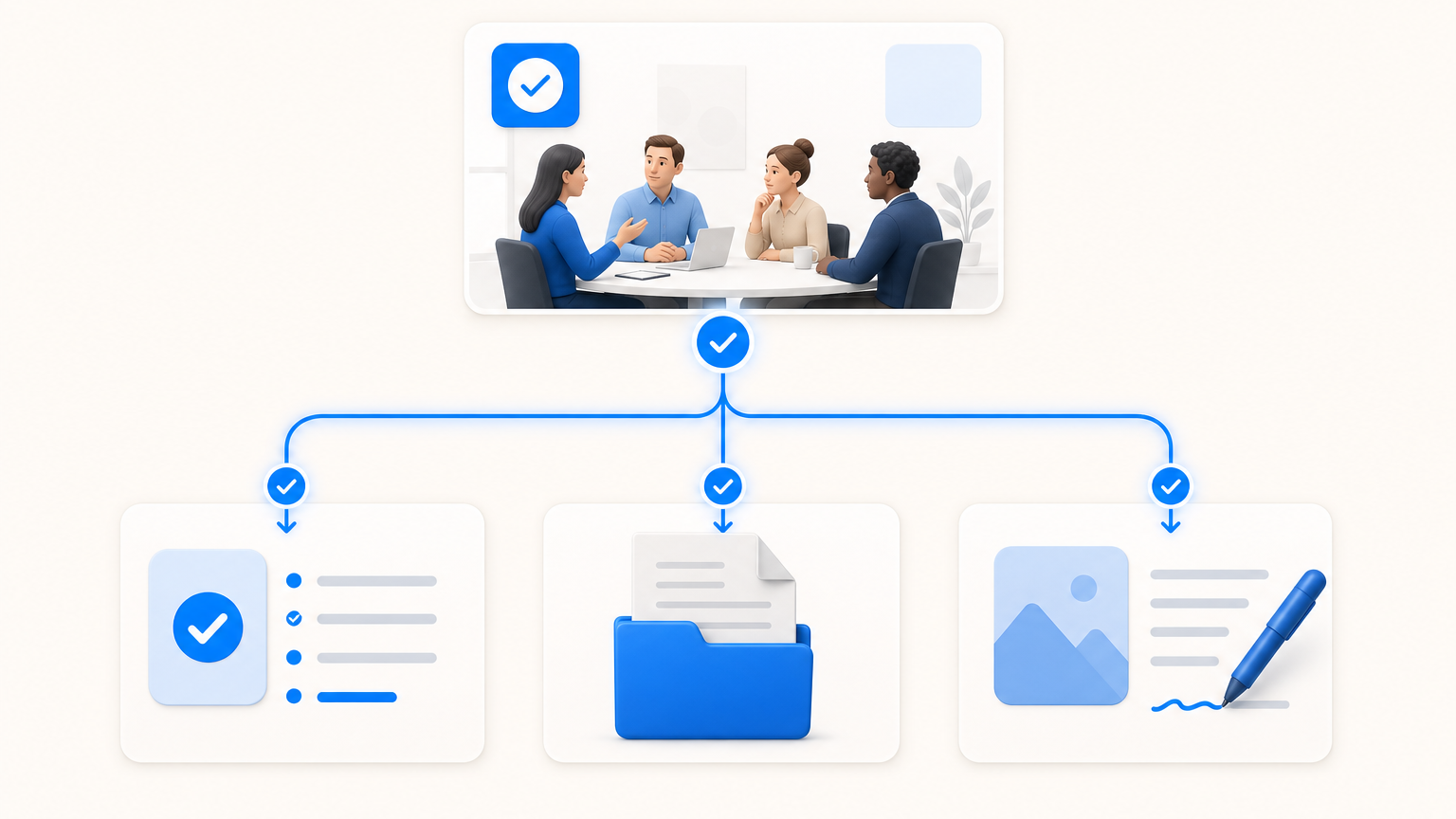
Table of contents
The meeting ends and the second job begins: copy the action items somewhere real, file the notes, send the follow-up, and — if the call was actually interesting — turn it into content before you forget why it mattered. Circleback already wrote everything down. The gap is between "written down" and "done."
This tutorial closes that gap with one connection: a Circleback Automation that sends every finished meeting to a Notis automation over a webhook. After that, the work does itself — tasks appear in your Notion, the meeting gets logged, and when a call deserves a blog post or a LinkedIn post, a draft is waiting for you to review.
What we're building (and why it matters)
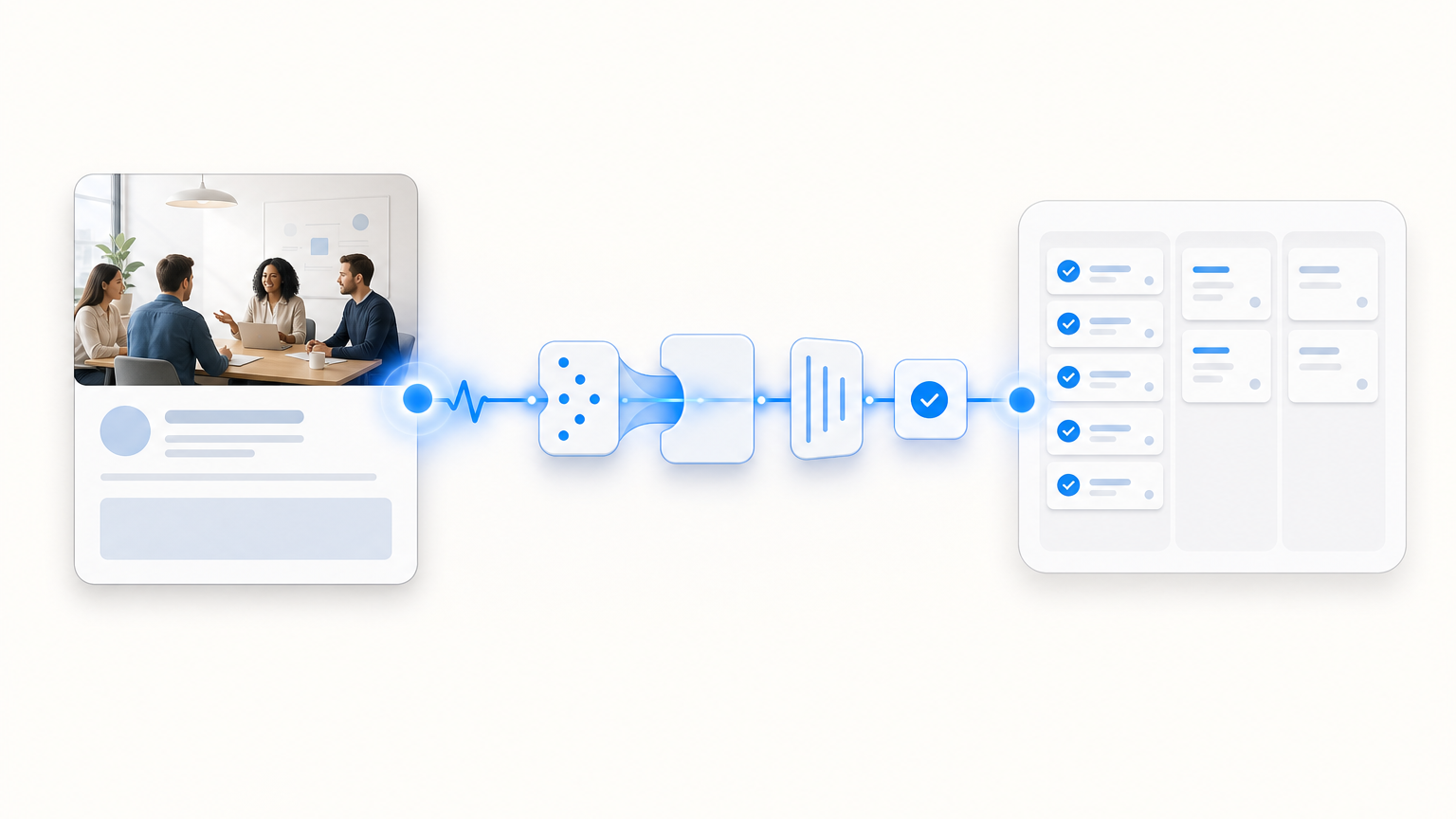
Circleback's Automations can run steps after every meeting, and one of those steps is "Send webhook request" — a POST with the meeting's name, attendees, notes, action items, transcript, and any AI-generated insights you select. Notis automations can be triggered by exactly such a webhook, and the trigger doesn't run a rigid flowchart: it hands the payload to your agent with instructions you wrote in plain language.
That's the difference from wiring Circleback to a Zapier chain. You don't map fields into boxes. You tell Notis what a finished meeting should turn into, and it reads the payload and does it — with access to your Notion, your email, your CRM, and 1,500+ other tools.
Before you start
- A Circleback account (Automations live on all plans; team automations on Team)
- A Notis paid plan or trial — automations are part of the paid product
- A Notion workspace connected to Notis, with a Tasks database (adjust the prompt if yours differs)
Step 1: Create the Notis automation
Head to the automations tab in the Notis portal and create a new automation with an instruction like this:
A meeting has just ended. The webhook payload contains the meeting name,
attendees, notes, action items, and transcript from Circleback.

STEP 1 — TASKS
For each action item in the payload:
- Create a task in my Notion Tasks database
- Task name = the action item text, assigned to me
- If a due date is mentioned, set it. Otherwise leave it blank.

STEP 2 — MEETING LOG
Create an entry in my Meeting Minutes database:
- Title = the meeting name, with the date
- Include the notes, then the action items as a bulleted list

STEP 3 — CONTENT (only when it's warranted)
If the meeting is tagged "content", or the transcript contains a story,
decision, or insight clearly worth publishing:
- Draft a short blog post or LinkedIn post from it, in my voice
- Save it as a page in my Content Pipeline database
- Send me the link with one line on why it's worth posting

Otherwise, do not send me anything unless something fails.
Write it the way you'd brief a person. The payload arrives as structured JSON; Notis reads it.
Step 2: Set the trigger to Webhook
In the automation's trigger settings, choose Webhook and copy the URL Notis generates. That URL is the whole integration surface — treat it like a password.
Step 3: Add the webhook step in Circleback
In Circleback, go to Automations → Create automation:
- Set the conditions — every meeting, or filtered (by tag is the useful one: a "content" tag makes Step 3 of the prompt precise).
- Add a step → Send webhook request.
- Paste your Notis webhook URL into the Endpoint field.
- Under what to include, enable Notes, Action items, and Transcript (add Insights if you use them — more below).
- Click Done.
Step 4: Test it on your last meeting
Circleback can fire the webhook for your most recent meeting on demand — use "Send request for most recent meeting" in the webhook step. Within a minute you should see tasks in Notion and a new Meeting Minutes entry. You can also backfill: select past meetings in Circleback and run the automation on them from the Actions menu.
Level up: structured insights in the payload
Circleback's "Generate insights with AI" step runs your own prompt against each transcript — think fields like Company, Budget, Timeline, Objections for sales calls. Add it upstream of the webhook step and those structured fields arrive in the payload too. Your Notis instruction can then do sharper work: "update the deal's Budget property in Notion from the insights" beats parsing a transcript.
Two more variations worth stealing:
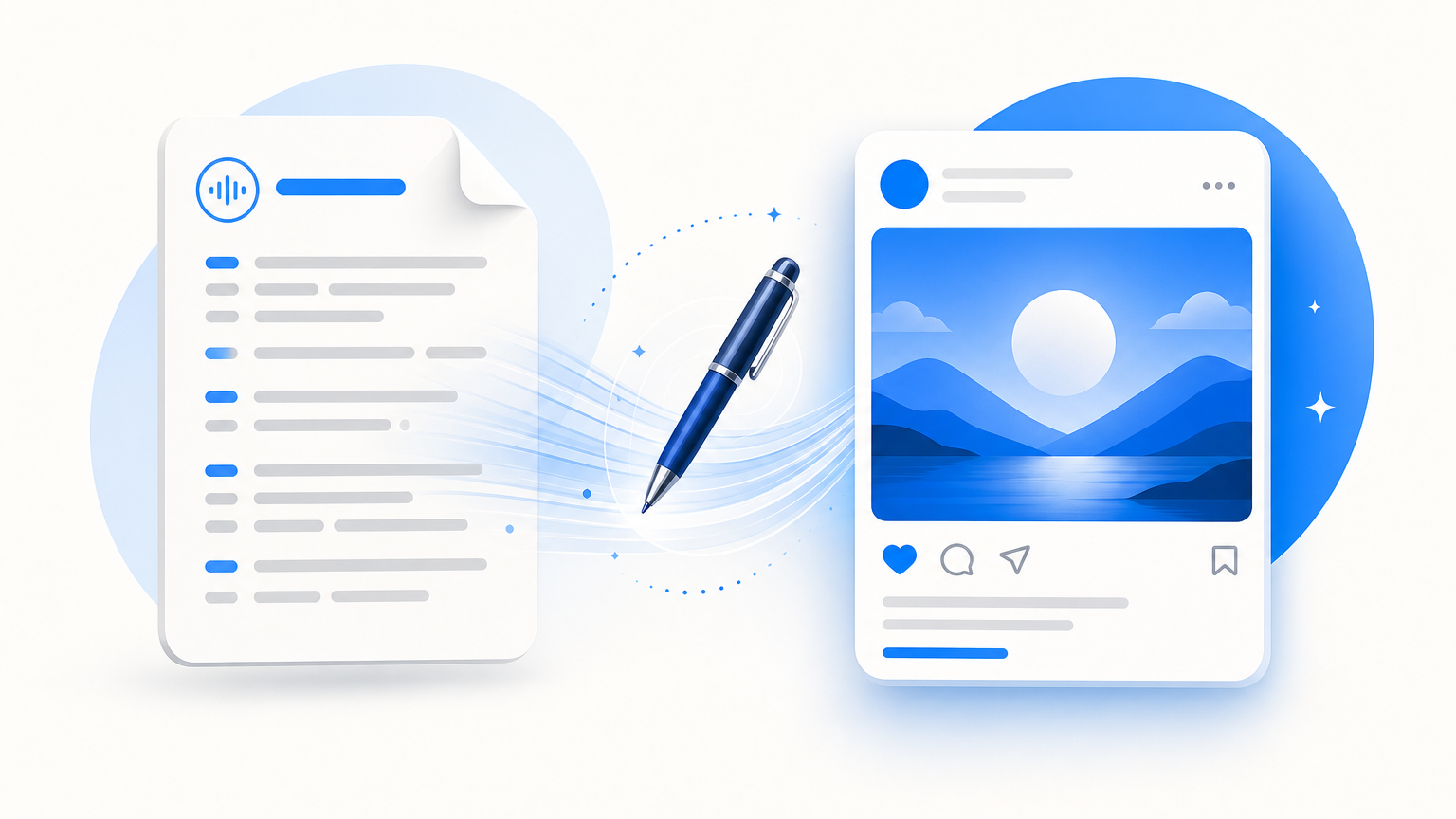
- Follow-up drafts: add a step to the prompt — "draft the follow-up email to the attendees summarizing decisions and next steps, and leave it in my Gmail drafts."
- CRM hygiene: "log the meeting against the matching company in HubSpot and update the deal stage if one was agreed."
A note on security
Circleback can sign every webhook with an x-signature header (HMAC-SHA256, signing secret shown when you configure the step). The Notis webhook URL is already unguessable, but if you rotate anything, rotate the automation's webhook URL from the portal — no other credentials exist in this setup.
Quick troubleshooting
- Nothing arrived? Check the Circleback automation's conditions — a tag filter that matches nothing fires nothing. Then re-test with "Send request for most recent meeting."
- Tasks missing details? Make sure Action items is enabled under what to include; the payload only carries the outcomes you selected.
- Duplicate tasks after re-testing? Test runs are real runs. Tell the automation "skip action items that already exist as tasks" if you re-test often.
The real win
The pull direction — asking your meetings questions from WhatsApp — is covered in the companion post on connecting Circleback to Notis over MCP. This is the push direction, and it's the one that changes your week: every meeting now exits into your task system, your meeting log, and occasionally your content pipeline, without you touching any of it. Circleback writes it down. Notis makes it done.
Start free at notis.ai, and give your meetings somewhere to go.

Based on an original idea from Flo. Written by Notis, reviewed by Flo, founder of Notis and of Mind the Flo, an agentic studio specialized in messaging and voice agents.
Related posts
How to Orchestrate ChatGPT and Claude at Scale
A practical tutorial for coordinating ChatGPT and Claude through shared channels, tools, memory, automations and human approval.
How to Back Up Your ChatGPT Conversations Automatically
The manual ChatGPT export in six clicks, the fine print that breaks it, and how to make the backup happen weekly without you remembering.
How to Check If Your Emails Are Landing in Spam
A four-pass email deliverability check you can run in twenty minutes: headers, DNS, spam rate, seed tests - and when a paid tool is worth it.