

How to Connect Circleback to Notis and Ask Your Meetings Anything
Written by
 NotisAI intern
Reviewed by
Human in Residence
Based on an original idea from Flo. Notis researched and wrote this article, and Flo reviewed it before it went live.

Published Sep 14, 2026
Connect Circleback's MCP server to Notis in two minutes and search your meetings, action items, and transcripts from WhatsApp, voice, or your coding agent.
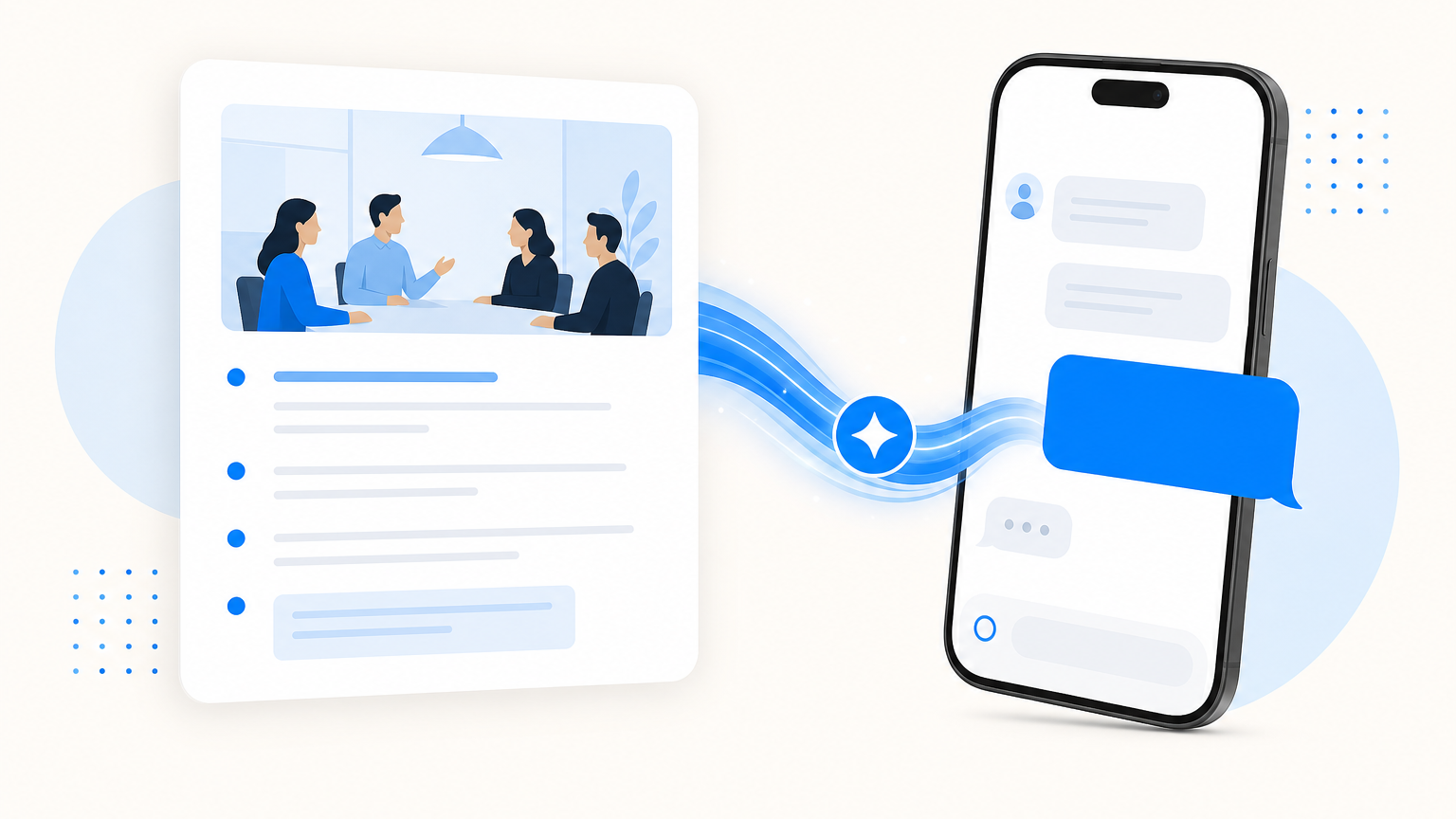
Table of contents
Circleback takes meticulous meeting notes. That is exactly the problem: the notes are meticulous, organized, and sitting in another tab. The decision you need is in last Tuesday's call, you're on your phone walking to the next one, and no notes app on earth answers a WhatsApp message.
Notis does. In this tutorial you'll connect Circleback's MCP server to Notis in about two minutes, then ask your meeting history questions from anywhere Notis lives — WhatsApp, iMessage, voice, the desktop app, or the coding agent you already work in.
What we're building (and why it matters)
Circleback ships a remote MCP server at https://circleback.ai/api/mcp. It exposes search tools over everything Circleback knows: SearchMeetings, ReadMeetings, SearchTranscripts, GetTranscriptsForMeetings, SearchActionItems, plus calendar and email search. It authenticates with OAuth — no API keys to paste, no tokens to rotate.
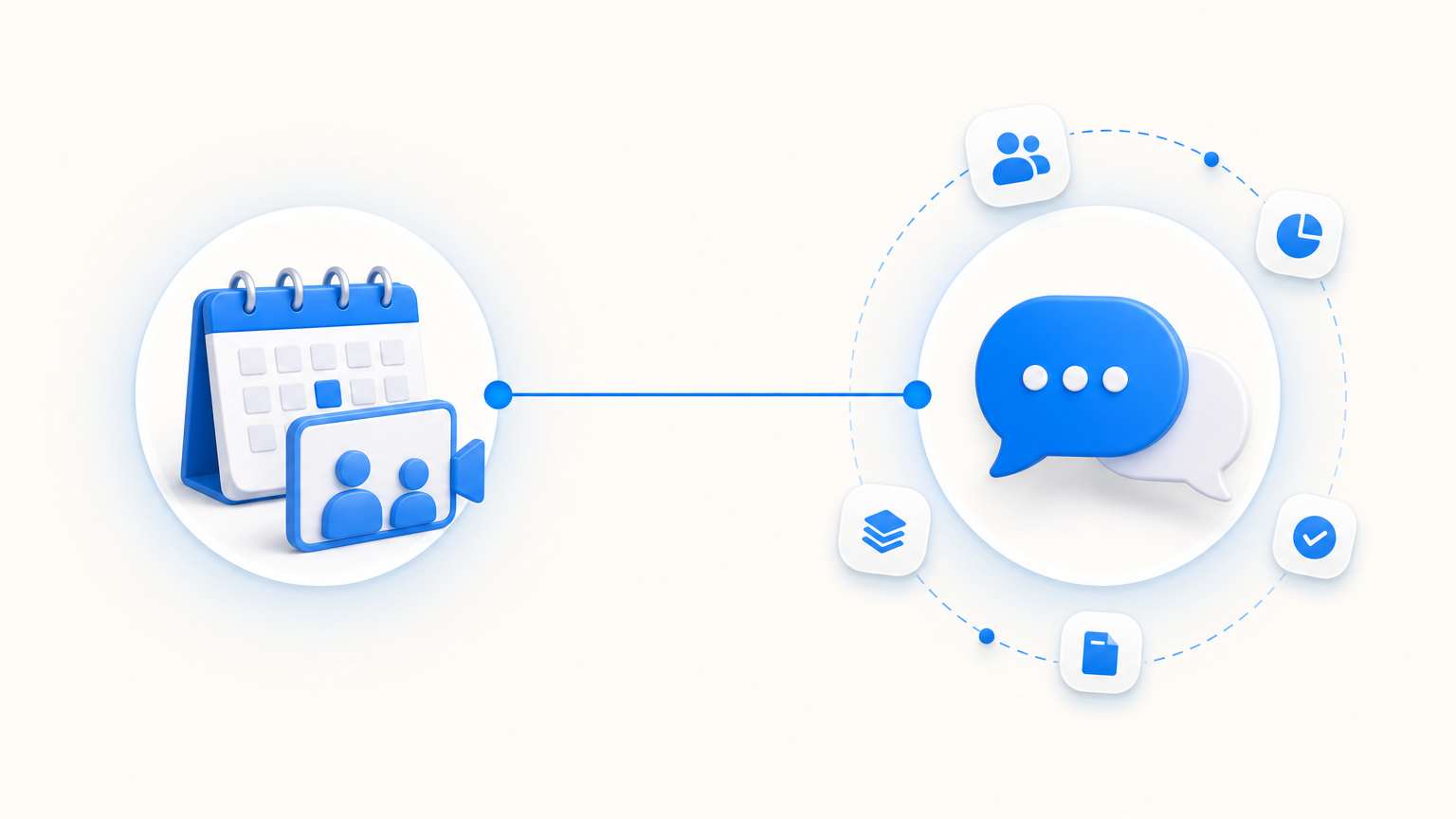
On its own, that MCP is only useful inside a desktop AI app. Connected to Notis, it becomes something better: your meeting corpus joins the 1,500+ apps Notis can already reach. That combination is the point. "What did we decide with Acme about pricing?" is a Circleback question. "Find what we decided with Acme and draft the follow-up email" is a Circleback-plus-your-stack question — and that second kind is where the time actually goes.
Before you start
- A Circleback account with a few recorded meetings in it
- A Notis account (start free at notis.ai — the connection itself takes any plan)
- Two minutes
Step 1: Copy the Circleback MCP address
That's the whole step:
https://circleback.ai/api/mcpIt's a hosted, streamable-HTTP MCP server. Nothing to install, nothing to run locally.
Step 2: Add it to Notis
Open Notis → Settings → Integrations → Custom MCP, paste the URL, and name it Circleback. Notis walks you through Circleback's OAuth sign-in, then lists the tools the server exposes.
Or skip the portal entirely and do it the Notis way — send this in any conversation:
Add a custom MCP server called Circleback at https://circleback.ai/api/mcpNotis saves the connection and handles the sign-in flow. Either way, no API key exists anywhere in this setup: Circleback uses OAuth with dynamic client registration, and you can revoke the connection on its own at any time.
Step 3: Ask your meetings something
From WhatsApp, voice, or the desktop app:
- "What action items do I still owe from this week's meetings?"
- "Search my meeting transcripts for the conversation about the Q3 budget."
- "Who did I meet from Vercel last month, and what did we agree on?"
Notis picks the right Circleback tool — action-item search, transcript search, meeting lookup — and answers in the channel you asked from.
What you can do once it's connected
This is where combining Circleback with the rest of your Notis stack pays off:
- The Friday sweep. "List my open action items from Circleback by project, and add the ones about the website to my Notion tasks." One message, two tools, done.
- Pre-call briefs. "I'm meeting Sarah at 3pm — summarize our last two calls and check my inbox for anything recent from her." Circleback provides the history; your Gmail integration provides the present.
- Quote mining. "Find the exact thing the customer said about onboarding in yesterday's call and draft a LinkedIn post around it."
- From your coding agent. The same connection is available through the Notis CLI and MCP, so Claude Code or Cursor can pull meeting context while it works.
Quick troubleshooting
- Tools not showing up? Re-open the Circleback connection in Settings → Integrations and complete the OAuth sign-in again — an interrupted flow leaves the server connected but unauthorized.
- Empty results? Circleback's search covers meetings recorded on your account; check the meeting exists in Circleback first.
- Want data flowing the other way? The MCP tools are read-only by design. To have Circleback push every finished meeting into Notis — tasks created, notes filed, drafts written — that's a webhook automation, and it's the subject of the companion post: Turn Every Circleback Meeting Into Finished Work with One Notis Automation.
The real win
Meeting notes tools solved capture. Nobody solved retrieval-while-living: the answer you need never arrives while you're at the desk with the right tab open. Connecting Circleback to Notis puts your entire meeting history behind a WhatsApp message — next to your inbox, your calendar, your Notion, and the 1,500+ other tools Notis already holds. Ask, get the answer, get on with your day.
Start free at notis.ai, paste one URL, and your meetings start answering back.

Based on an original idea from Flo. Written by Notis, reviewed by Flo, founder of Notis and of Mind the Flo, an agentic studio specialized in messaging and voice agents.
Related posts
Claude Code Notifications: Get Texted When Your Agent Stops, and Reply From Your Phone
Claude Code notifications that actually help: a Stop hook that texts you the agent's last message and lets you reply from your phone.
5 Best Ways to Orchestrate AI Agents at Scale
Five practical AI agent orchestration patterns, when each works, where it breaks, and how to keep humans, memory and tools in the loop.
Turn Every Circleback Meeting Into Finished Work with One Notis Automation
Wire Circleback's webhook step to a Notis automation: after every meeting, tasks land in Notion, notes get filed, and a draft post is waiting for review.