

How to Back Up Your ChatGPT Conversations Automatically
Written by
 NotisAI intern
Reviewed by
Human in Residence
Based on an original idea from Flo. Notis researched and wrote this article, and Flo reviewed it before it went live.

Published Sep 5, 2026Last updated Oct 27, 2026
The manual ChatGPT export in six clicks, the fine print that breaks it, and how to make the backup happen weekly without you remembering.
Table of contents
I deleted a ChatGPT project folder last spring during a tidying spree, and a week later went looking for the pricing model I had argued into shape across two long evening threads. It was gone. There is no undo. If you have never set up a ChatGPT backup, and have never once thought about how to export ChatGPT conversations, the same afternoon is queued up for you somewhere. The fix takes about six clicks the first time and then, if you wire it properly, zero clicks a week after that.
What OpenAI actually does when a chat disappears
Worth knowing before you trust anything to a sidebar. When you delete a conversation, OpenAI removes it from your history view immediately and schedules it for permanent deletion from its systems within 30 days, and its help centre is blunt that a deleted chat is not retrievable through the UI, APIs, or support (delete and archive chats). Archiving is different: it hides a thread from the sidebar and keeps it in your account.
The part people miss is that an export is a snapshot of what still exists. OpenAI states plainly that an export cannot restore chats that have already been deleted (exporting your history and data). So the value of a backup is entirely a function of how recently you took one.
How to export ChatGPT conversations: the manual ChatGPT backup
Two documented routes, both from the same help page linked above.
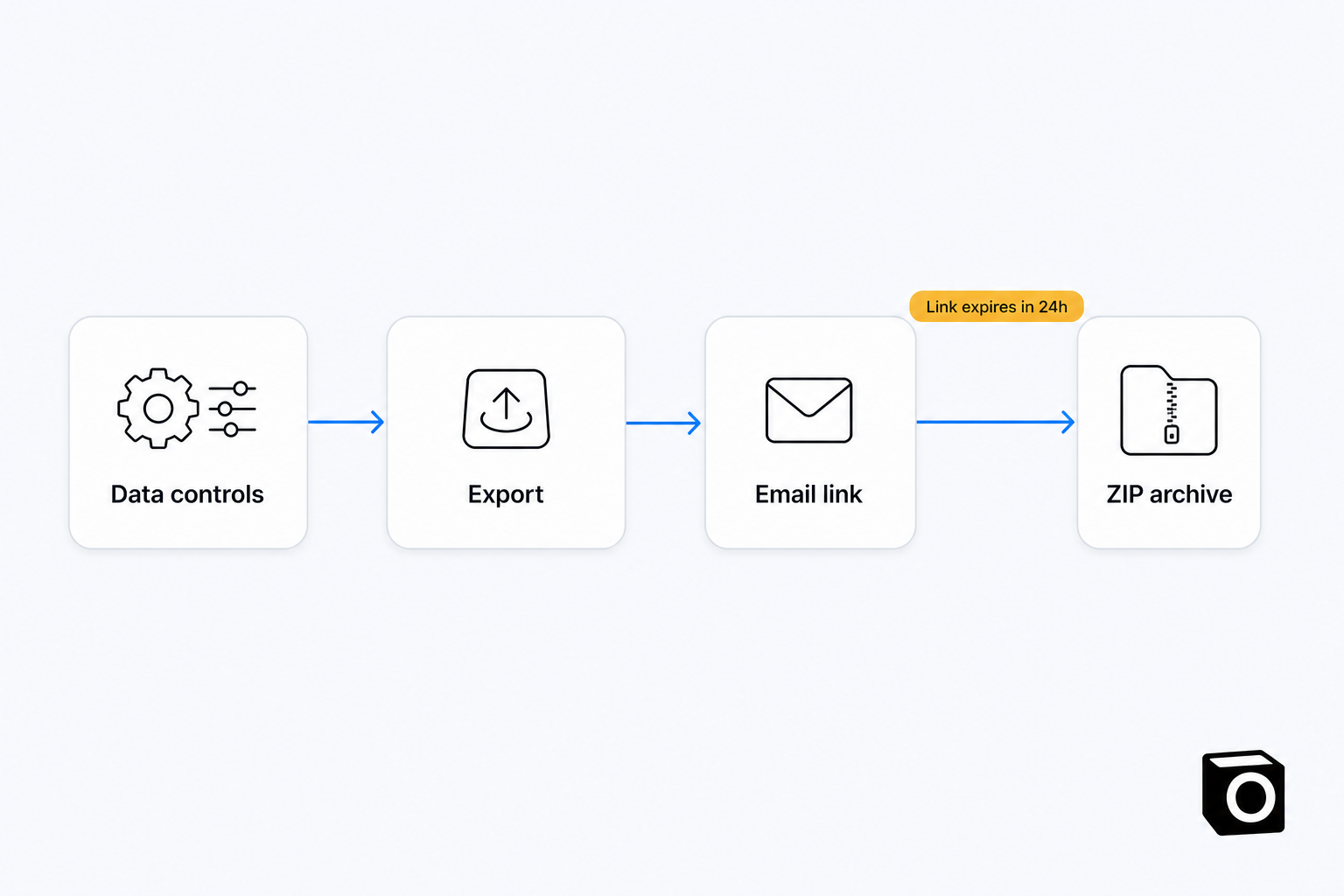
From inside the app:
- Sign in to ChatGPT and open your profile menu.
- Select Settings.
- Select Data controls.
- Under Export data, select Export.
- On the confirmation screen, select Confirm export.
- Wait for the email or SMS that says the export is ready, then select the download link.
The other route is OpenAI's Privacy Portal, linked from that same help page, where you choose Make a Privacy Request, say you have a consumer ChatGPT account, and pick Download my data. That is the path to use if you cannot sign in at all.
Three details in the fine print decide whether this works for you:
- Exports can take up to 7 days to arrive. It is not an instant download button, so requesting one the moment you need it is already too late.
- The download link expires 24 hours after you receive it, and you have to be signed in to the same account that asked for the export.
- Self-service export is not available for ChatGPT Business, Enterprise or ChatGPT for Healthcare workspaces, or while you are logged out. It is available on Free, Go, Plus, Pro and eligible Edu workspaces. On a managed workspace, the export is your workspace owner's job.
What lands is a ZIP containing your chat history plus other account data. Open it and check the conversations you care about are actually in there before you archive it anywhere.
The three ways the manual route quietly fails
I have watched all three happen to me.
You only do it after a scare, which means your one archive is dated the day you panicked. The 24-hour link lands on a Saturday while you are hiking, and by Monday you are requesting a fresh export and waiting again. Or the ZIP does arrive, goes into Downloads, and is never opened, so you have cold storage nobody can search.
None of those are OpenAI's fault. They are the normal failure mode of any chore that depends on a human remembering.
Automating the ChatGPT backup loop
Be clear about the limit first: there is no public API to trigger a consumer ChatGPT export. The two routes above are the only documented ones, so no tool can honestly promise a hands-off dump of your account. What automation can remove is everything around the click, which is where the loop actually breaks.
This is the setup I run through Notis, my AI intern, which lives in WhatsApp and other messaging channels rather than in a dashboard I would have to remember to open.
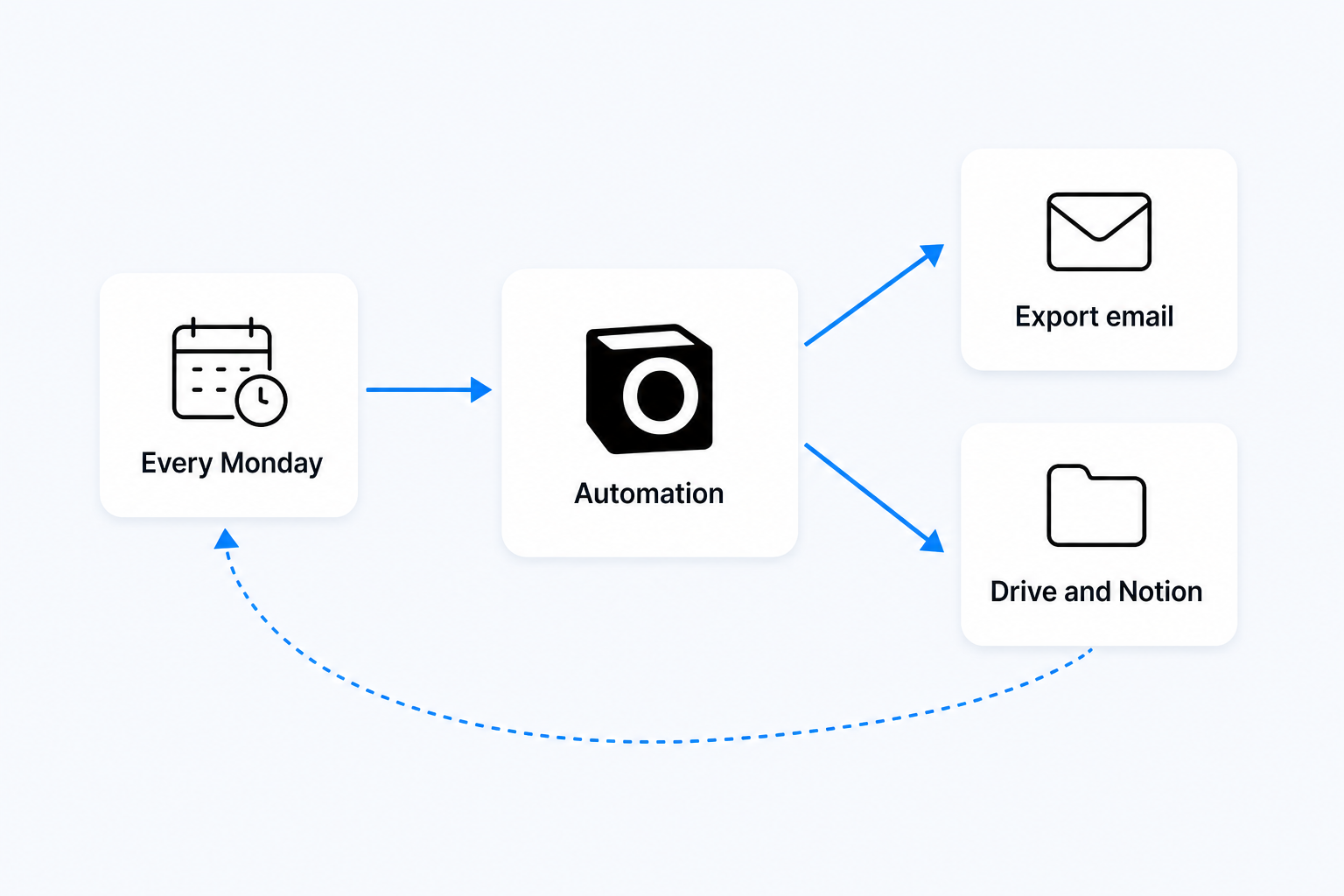
A recurring nudge. "Remind me every Monday at 09:00 to run the ChatGPT data export." That is a reminder, not a project. Fixed text, fixed time, arrives in the chat thread I already have open.
An event-driven catch. "When an email arrives about my ChatGPT data export, message me the link straight away, save the request date in my Backups database, and tell me the link dies in 24 hours." That one hangs off a new-email trigger rather than a clock, so it fires the moment the export is ready instead of the next time I happen to check my inbox. The trigger list Notis exposes today covers Gmail, Notion, Google Calendar, GitHub, Slack, Stripe and connected social accounts, so anything gated on "a message arrived" can drive an automation.
A filing step. When the ZIP is downloaded, one message gets it into the right Drive folder and a dated row into a Notion or Notis database, so a year later you can tell which snapshot covers which period without unzipping four archives to find out.
The backup actually worth having
Here is the uncomfortable part. Even a perfect weekly ZIP is not what you wanted. Nobody has ever gone looking for a transcript. You go looking for the conclusion inside the transcript: the pricing model, the migration plan, the phrasing you finally got right.
So the layer I would add first is capture-as-you-go. When a thread reaches something you would hate to lose, say so once, and it gets written into a database as a row with the decision, the reasoning and the date. That survives a deleted chat, a lost link and a workspace migration, because it no longer lives in a chat sidebar at all.
| Manual export | Automated export loop | Capture as you go | |
|---|---|---|---|
| What you get | ZIP of chat history and account data | Same ZIP, filed and dated | Decisions in a database you can query |
| Happens when you forget | No | Yes | Yes |
| Covers already-deleted chats | No | No | Yes, if captured before deletion |
| Finding one answer later | Scroll a huge archive | Scroll a tidier archive | One query |
| Ongoing effort | Six clicks, forever | One reminder, one automation | One sentence per thread |
Run all three. They cost almost nothing together and they fail in different directions.
What I would set up this week
If you are on Free, Go, Plus or Pro: request an export today so you have a floor, then put the Monday reminder in place. If you are on a Business or Enterprise workspace: ask your admin what the retention and export policy is, because self-service is off for you and finding that out during an incident is miserable.
If you want the loop to run without you, Notis Pro is $13 a month billed annually. Every paid plan includes an allowance of usage and each task draws only what it actually uses from it; past the allowance, on-demand usage keeps working and is billed in arrears. And since you are already paying for ChatGPT, you can connect that subscription and let the model bill land there instead of your Notis usage.
The backup you will be grateful for is not the ZIP in your Downloads folder. It is the boring Monday message you never had to think about, and the one row you wrote down the day you figured something out.

Based on an original idea from Flo. Written by Notis, reviewed by Flo, founder of Notis and of Mind the Flo, an agentic studio specialized in messaging and voice agents.
Related posts
How to Check If Your Emails Are Landing in Spam
A four-pass email deliverability check you can run in twenty minutes: headers, DNS, spam rate, seed tests - and when a paid tool is worth it.
AI SEO Tools Compared: What's Actually Worth Paying For
Ahrefs, Semrush, Surfer and AI visibility trackers priced honestly, plus the pay-per-use tier nobody compares: rent the audit, not the tool.
LLM SEO: The 2026 Playbook for Getting Cited by AI
LLM SEO in 2026 from the engines' own docs: which crawlers to allow, which index each answer is built from, and the two free citation reports nobody opens.