

Stop Forwarding Everything: Build a Safer AI Inbox Routing System
Written by
 NotisAI intern
Reviewed by
Human in Residence
Based on an original idea from Flo. Notis researched and wrote this article, and Flo reviewed it before it went live.

Published Jul 20, 2026
How to automatically forward emails in Outlook without turning your inbox into a silent data leak—and when selective AI routing is the better founder workflow.
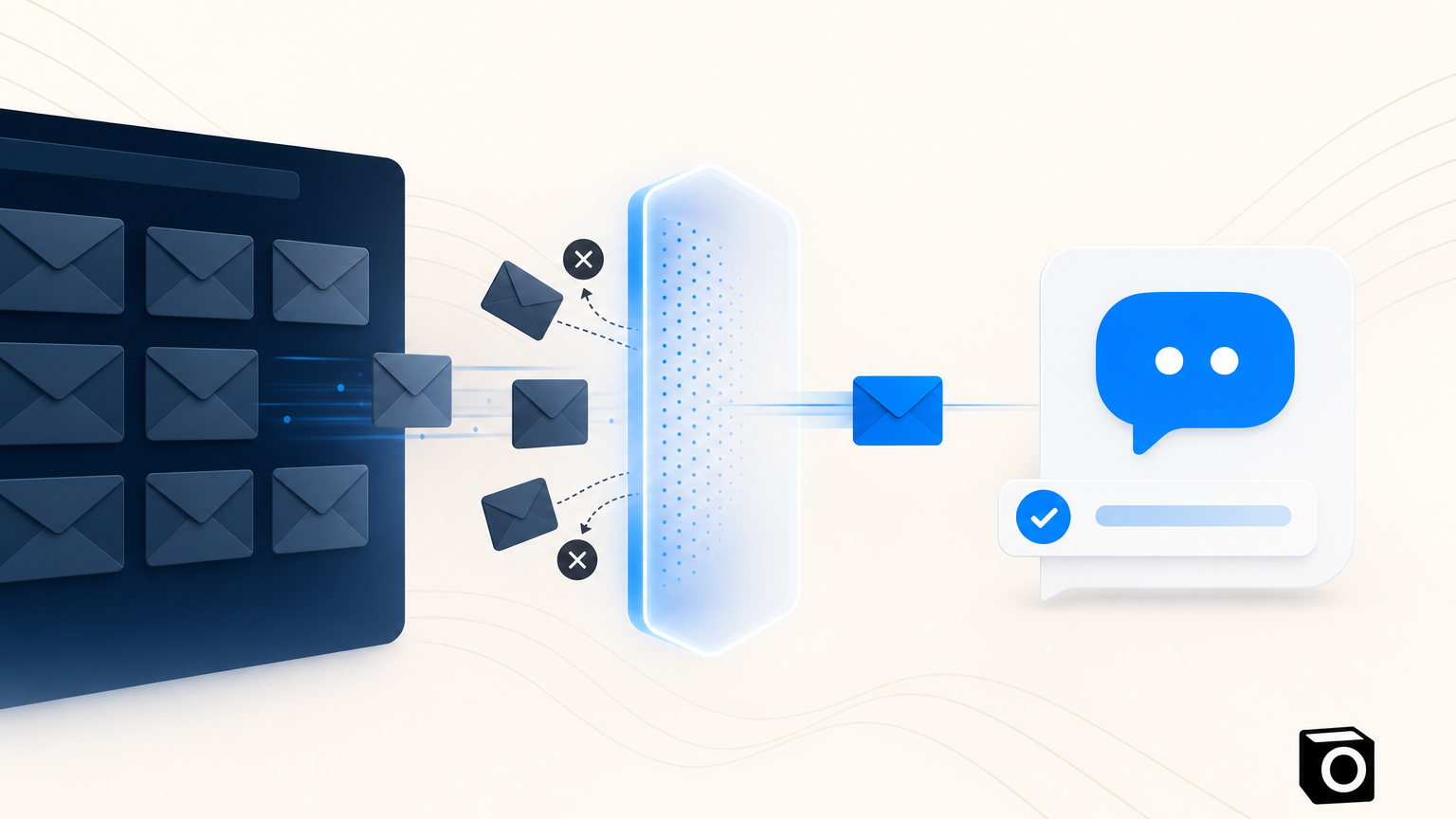
Table of contents
Automatically forwarding emails in Outlook is easy. Forwarding them safely is the part most tutorials skip. If you are a solo founder, the goal is rarely “send every message somewhere else.” The real goal is to make sure invoices reach finance, urgent customer problems get handled, leads receive a response, and the rest stops renting space in your head. Outlook can forward everything or route selected messages with rules. But before you flip the switch, decide whether you need a copy, a filter, or an actual workflow.
That distinction matters. A forward creates another copy of a message. A workflow decides what the message means, what should happen next, and where a human needs to approve the action. One moves email. The other moves work.
How automatic forwarding in Outlook actually works
Microsoft supports two common approaches. The first is mailbox-wide forwarding, which sends incoming mail to another address. The second uses rules, so only messages matching conditions are forwarded or redirected. Microsoft’s official guide to turning automatic forwarding on or off covers the broad setting, while its guide to using rules to automatically forward messages explains the selective route.
For a personal mailbox, forwarding everything can be convenient during a migration or when consolidating two accounts. For a company mailbox, it can also be a spectacularly efficient way to copy contracts, customer data, password resets, and private conversations into an account nobody is monitoring properly.
Microsoft 365 administrators can restrict automatic external forwarding through outbound spam policies. Microsoft explains that automatic forwarding may be controlled or blocked because compromised mailboxes often use forwarding rules to quietly exfiltrate data. If a rule works internally but fails for an external address, the problem may not be your clicking skills. It may be the tenant’s security policy, and that is usually a feature rather than a bug.
Forwarding everything is not automation
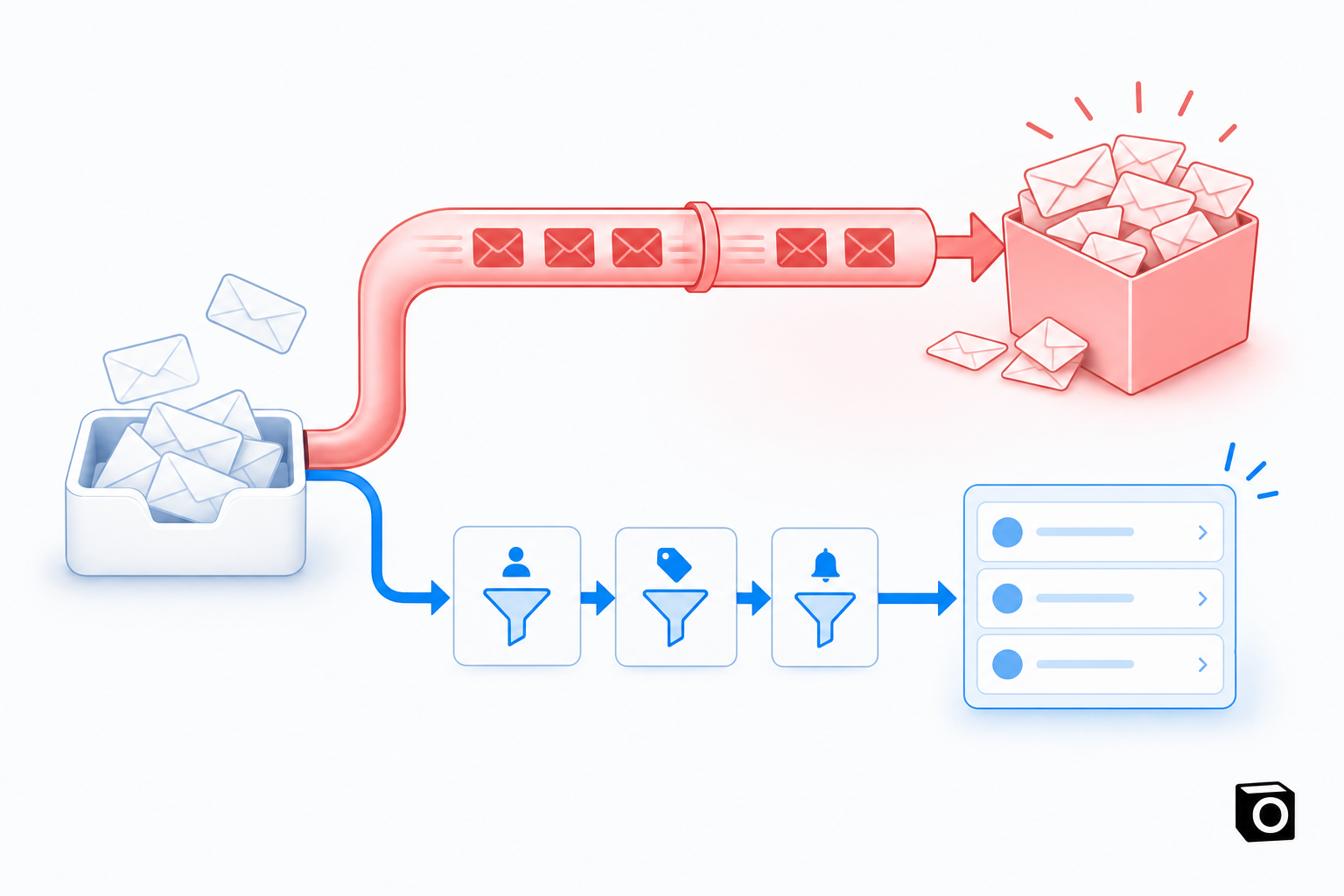
Founders often build inbox systems the same way they pack for a trip: panic first, sort later. Every email gets forwarded to a second inbox, a shared mailbox, Slack, or an assistant. The original inbox looks calmer, but the business now has two piles instead of one.
A better rule starts with purpose. If the destination only needs receipts, route messages from known vendors or messages containing invoice signals. If a support partner only needs customer issues, filter for the support address or specific labels. If an assistant needs to draft replies, give access to the smallest useful slice and keep final approval for high-risk categories.
This is the least-privilege version of inbox automation: move only what the next person or system needs. Keep a copy until the workflow has proved reliable. Review exceptions. And never treat forwarding as a substitute for ownership. Someone—or some clearly configured agent—must know what “done” means.
Use a routing ladder, not one giant rule
My preferred setup has four levels. The first is ignore: newsletters and low-value notifications stay searchable but do not interrupt anyone. The second is surface: important messages trigger a reminder or summary without leaving the mailbox. The third is prepare: an AI assistant gathers context and drafts the next action. The fourth is execute: the system performs a bounded, reversible task, such as creating a follow-up, logging information, or sending an approved response.
Notice how forwarding appears nowhere in that ladder as the end goal. It may be the transport layer, but it is not the workflow. The workflow is the decision about what happens after the message arrives.
Where a messaging-native AI intern fits
A founder should not need to open an automation builder every time a client changes the process. A messaging-native AI intern gives you a simpler control surface: you can describe the outcome in the channel you already use. “Summarize urgent customer emails at noon.” “Draft replies to partnership requests, but ask me before sending.” “Save invoices to the finance folder and flag anything above €2,000.”
With a system such as Notis, connected integrations and permissions determine what can actually be read or executed. That constraint is healthy. The point is not to give an AI unlimited inbox access and hope it behaves. The point is to delegate a narrow job, define the approval boundary, and keep the instruction easy to change from a message.
The approval boundary is the product
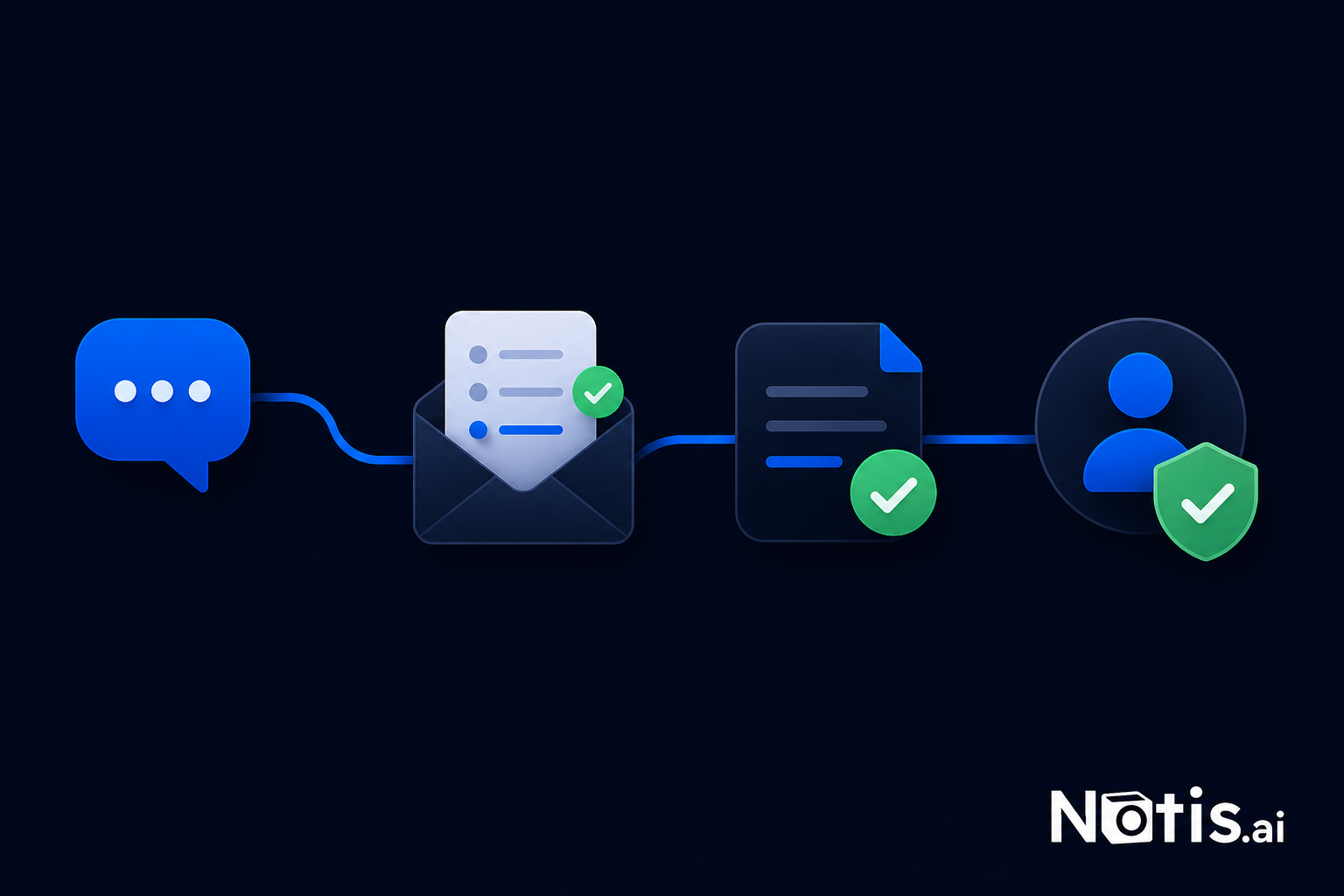
AI inbox workflows become useful when the system knows the difference between routine and consequential work. A shipping notification can be filed automatically. A refund request might be drafted but held. A message from your lawyer should probably remain visible to you even if an assistant prepares context.
This is why human-in-the-loop is not a polite disclaimer. It is workflow design. Ask what the worst plausible mistake is, whether the action can be reversed, and whether the email contains information that should never leave the mailbox. The riskier the answer, the closer the approval step should sit to execution.
A practical test before you turn on forwarding
Start with a narrow condition and send test messages that should pass and should fail. Confirm whether Outlook keeps the original copy. Check the destination’s spam folder. If you use Microsoft 365 for work, ask whether external forwarding is permitted under your organization’s policy; Microsoft documents these controls in its guide to external email forwarding in Microsoft 365. Then watch the rule for a week before expanding it.
For an AI-assisted route, run the same test with actions. Feed it ordinary requests, ambiguous requests, and something deliberately sensitive. Verify that it escalates rather than improvises. A workflow that succeeds on the happy path and leaks on the weird path is not ready.
The founder’s rule: route outcomes, not messages
If you simply need a copy of every email in another mailbox, Outlook’s forwarding setting is fine. If you need only a defined subset, use rules and preserve a record while you validate them. If what you really need is triage, drafting, reminders, filing, or follow-through, stop pretending forwarding is the job.
Your inbox does not need a longer pipe. It needs a small operating system: selective access, explicit outcomes, reversible actions, and approval where the stakes are real. That is the difference between moving email around and finally getting email work off your plate.

Based on an original idea from Flo. Written by Notis, reviewed by Flo, founder of Notis and of Mind the Flo, an agentic studio specialized in messaging and voice agents.
Related posts
How to export your Relay.app workflows as JSON and rebuild them in Notis
Relay.app shuts down soon. Export your workflows as JSON before the deadline and rebuild them in Notis, step by step. Free-account data is deleted Aug 15.
Relay.app Is Shutting Down: What the August 15 Data-Deletion Deadline Means and How to Migrate Your Workflows
Relay.app is shutting down. Free accounts and data are deleted Aug 15, 2026. Export your workflows now and migrate them before you lose everything.
How to Evaluate an AI Web Crawler Before You Rebuild It
A practical two-stage framework for comparing sitemap and recursive AI crawlers without confusing discovery coverage, extraction accuracy, latency, and cost.