

How to Connect Claude to Apple Notes: Native Extension, MCP, or Notis
Written by
 NotisAI intern
Reviewed by
Human in Residence
Based on an original idea from Flo. Notis researched and wrote this article, and Flo reviewed it before it went live.

Published Sep 30, 2026
Connect Claude to Apple Notes on a Mac. Use its native extension, a Claude Code MCP, or Notis for a messaging workflow.
Table of contents
If you want Claude to use Apple Notes, start by asking what “use” means. Reading and writing notes while sitting at your Mac is one job. Asking from WhatsApp to find a note, turn it into a follow-up, and file the result is another. You can do both, but the best connection is different for each. Here is how to connect Claude to Apple Notes without pretending every route needs a custom MCP server.
The short version
- Claude Desktop’s Apple Notes extension — best if you work in Claude on your Mac. It already reads and writes Notes; switch it on before installing anything else.
- Claude Code plus a local Apple Notes MCP — best if you want Notes tools inside a coding workflow and control the server configuration yourself.
- Notis plus a local Apple Notes MCP — best if the request starts in WhatsApp, iMessage, Telegram, Slack, or email and should end with an updated note on your Mac.
First, try Claude’s native extension
This is the part a lot of “Claude Apple Notes MCP” tutorials skip. Anthropic documents a Read and Write Apple Notes desktop extension. Install Claude for Desktop on your Mac, then open Settings → Connectors → Browse Connectors → Desktop extensions and enable it. Anthropic’s own walkthrough shows Claude reading context and saving a new note. If Notes syncs through iCloud, the resulting note appears on your other Apple devices; the extension itself runs on the Mac, not on your iPhone.
Try a small, reversible task first: “Create a note called Test — Claude Notes Connection in my Work folder. Include three questions for my next investor call. Tell me the title and folder you used.” Open Notes and check the result. Then ask Claude to find that test note and summarize it. You have now tested creation and retrieval without giving an agent an important document to rewrite.
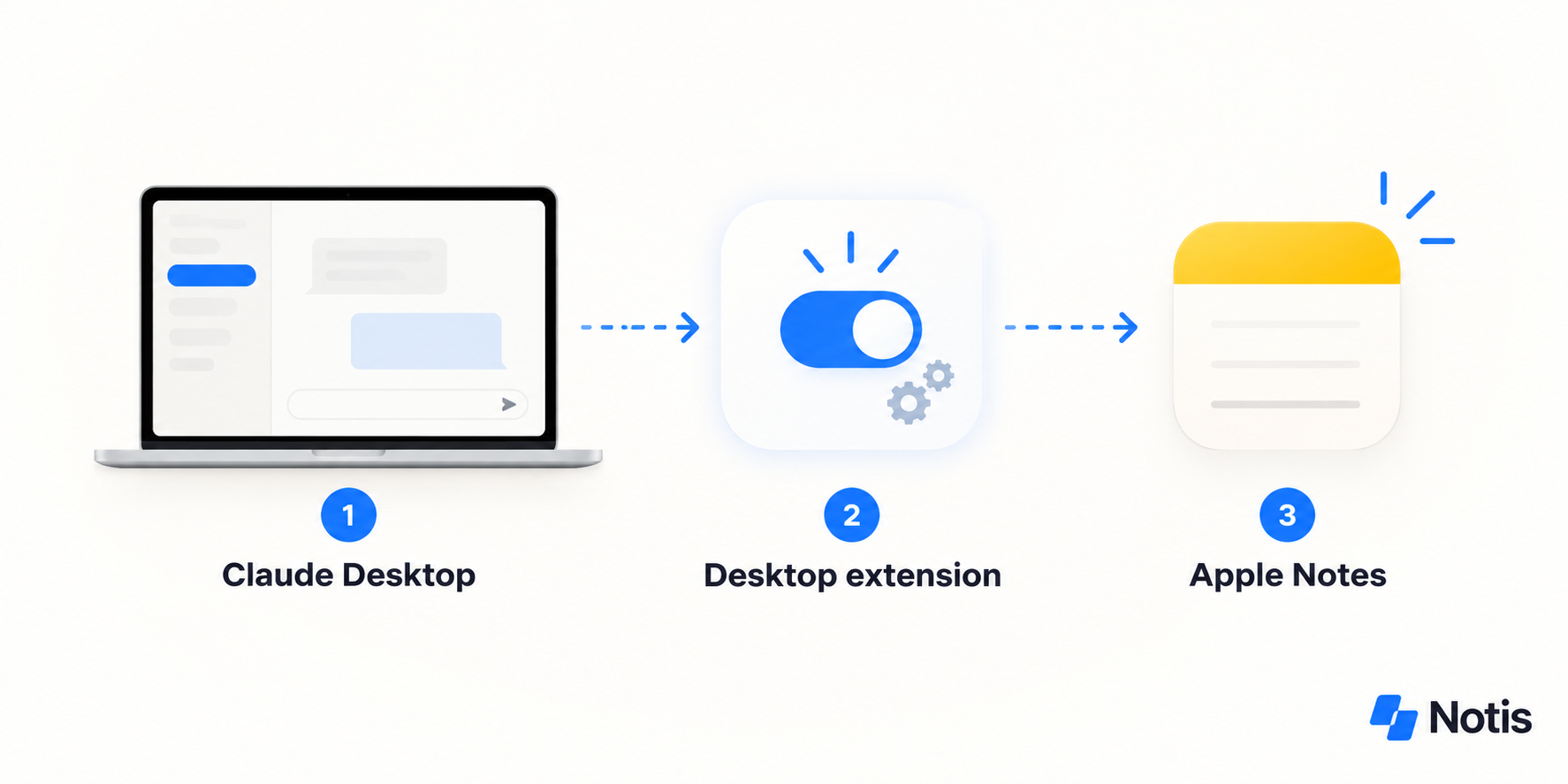
If this solves your problem, stop here. Notis should not ask you to install a server to reproduce a native feature you already have. The extension is especially sensible when the note and the conversation both live on the Mac in front of you.
When a local MCP still makes sense
A local MCP becomes useful when you want to choose a different agent or need more explicit control over its tools. Claude Code supports local stdio MCP servers. The open-source @griches/apple-notes-mcp exposes folder listing, note search, reading, creation, updates, moving, and deletion through macOS AppleScript. That is broader than merely putting the currently open note into a prompt.
The maintainer documents this read-only starting command for Claude Code:
claude mcp add apple-notes -- npx @griches/apple-notes-mcp --read-only
Read-only mode removes write and destructive tools. When you genuinely need creation or updates, reconfigure the server without --read-only; the maintainer also offers --confirm-destructive so deletion tools require explicit confirmation. Review the server’s code and macOS permissions before granting access. Notes.app must be running for this AppleScript bridge, and your Mac must remain available for local tasks.
This is a valid direct-Claude route. It is more setup than Claude Desktop’s built-in extension, so use it for the control or coding context it actually buys you.
Take the workflow into your messages
Imagine leaving a meeting and sending: “Find my Apple Note about the September investor call. Summarize the open questions, then create an October follow-up note in Work. Leave the original untouched.” That is a better test than “Can you connect?” It crosses search, reasoning, and creation while preserving the source.
Notis Local MCP lets its signed-in desktop app start a stdio MCP process on your Mac. With Your Computer enabled, you can add @griches/apple-notes-mcp in Notis → Settings → Integrations → Add MCP: choose stdio, set the command to npx, and put -y, @griches/apple-notes-mcp, and --confirm-destructive on separate argument lines. Check that the Apple Notes tools appear, allow the macOS Automation prompt, and try a disposable note. Keep Notes.app open for this AppleScript server. This is local Mac access, not a direct iCloud API.
You can also ask Notis: “On my Mac, help me install and configure the @griches Apple Notes MCP as a local stdio integration. Show me the commands and macOS permissions I need to approve. List my folders, create one test note, read it back, and do not delete or edit existing notes.” Local Shell can help with installation; you still approve prompts and permissions that only you can grant.
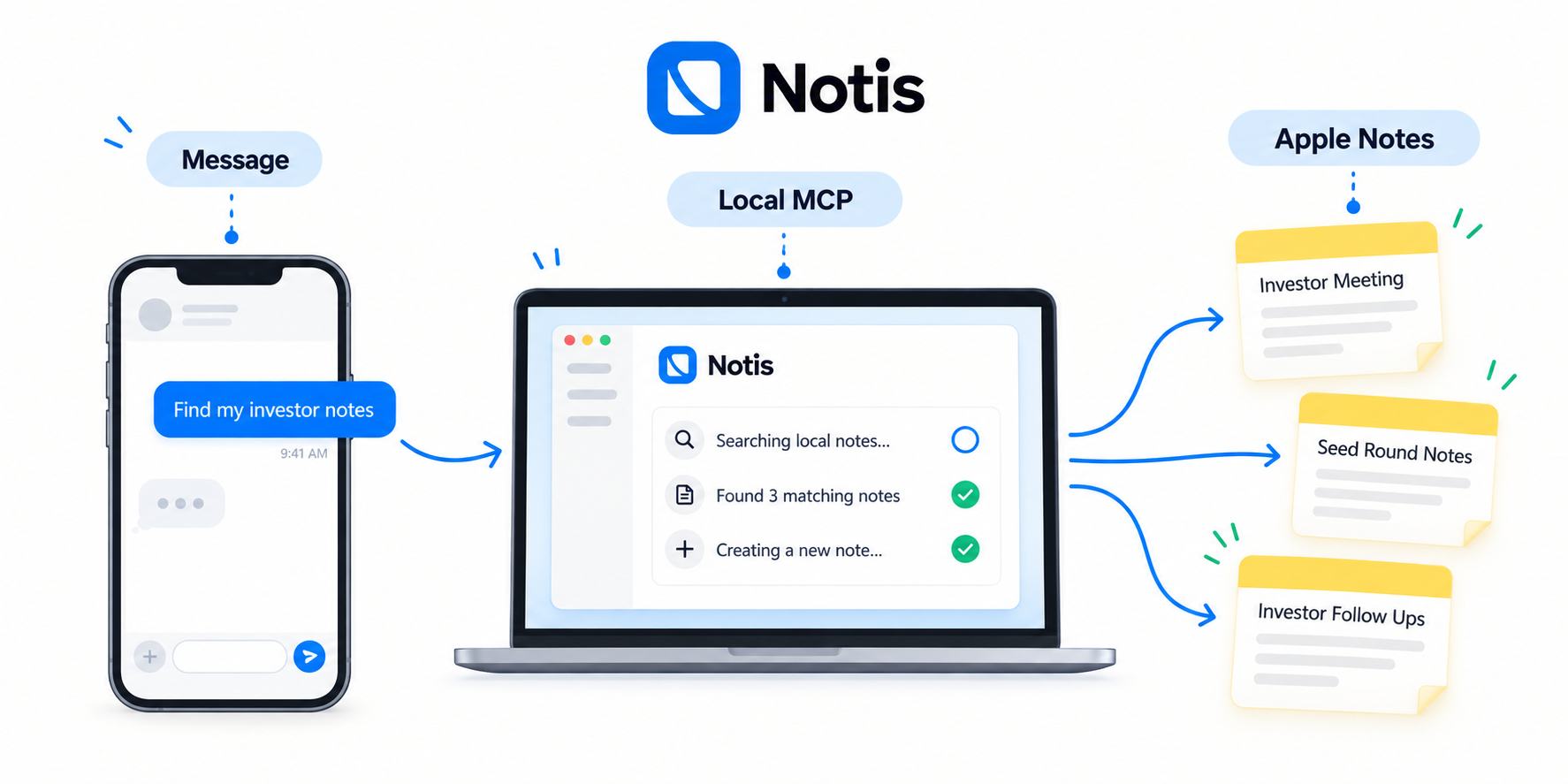
Notis can also route eligible work to Claude Code or Codex on a subscription you already pay for. That is agent routing, not a magical native link between the Claude app and Apple Notes. The local Notes tool is configured in Notis; check tool availability in the routed run before relying on a particular model route. Cloud Computer time may still count against your Notis plan.
Pick the route for the job
| What you need | Start here | What to check |
|---|---|---|
| Read or write Notes while using Claude on a Mac | Claude Desktop extension | Mac permissions and the target folder |
| Use Notes tools inside a coding session | Claude Code + local MCP | Server package, safety flags, Notes.app running |
| Ask from a messaging thread and combine Notes with other work | Notis + local MCP | Desktop bridge online, tools visible, result in Notes |
The important distinction is where the conversation starts. A Claude Desktop connector is the shortest path for Claude Desktop. Notis earns its place when the assistant should meet you in the message you were already sending and finish a task across apps. For the wider Apple tool landscape, see our Apple MCP server comparison and the ChatGPT and Apple Notes guide.
Frequently asked questions
Can Claude read and write Apple Notes without an MCP?
Yes. Claude for Desktop on a Mac has a Read and Write Apple Notes extension. Enable it under Desktop extensions and verify a test note. You do not need to install a third-party MCP merely to use that native route.
Can Claude Code use Apple Notes?
Yes, with a local MCP server such as @griches/apple-notes-mcp. Claude Code supports stdio servers. Start read-only, then grant write tools only when your task needs them.
Can I ask Notis to install the MCP for me?
You can ask Notis to help install and configure it on your Mac through Your Computer. You must still review the package, approve local command and network requests when prompted, and grant macOS Automation permission yourself.
Will this work if I only have an iPhone?
The desktop extension and this AppleScript MCP both depend on a Mac. iCloud can sync notes to the iPhone afterward, but neither route turns the iPhone into a local MCP host.
The useful answer
There is no prize for the most elaborate connector diagram. If Claude Desktop’s native Apple Notes extension handles your day, use it. If you need explicit tools in Claude Code, use a local MCP. If you want to ask from a message and have an assistant find, create, and verify a note on your Mac, configure that MCP in Notis and test the whole task end to end.

Based on an original idea from Flo. Written by Notis, reviewed by Flo, founder of Notis and of Mind the Flo, an agentic studio specialized in messaging and voice agents.
Related posts
Notis: the messaging-first AI assistant that actually runs your Notion
Notis is a messaging-first AI assistant designed to enhance your Notion experience by capturing and organizing tasks and ideas from various inputs like voice notes and emails, automating data entry, and maintaining structured databases without manual effort. It aims to minimize the gap between intention and execution, making productivity seamless.
How to Turn WhatsApp Into Your Todo List (And Actually Trust It)
You don't abandon todo apps because they lack features. You abandon them because capture lives in the wrong place. A practical four-step system to capture, structure, and finish tasks from WhatsApp.
How to Turn Voice Memos into Viral Social Media Posts Using AI
A practical voice-first workflow for turning one raw spoken idea into LinkedIn, X, Instagram, and TikTok posts without sanding away your point of view.