

How to build an automated help center with Notion + HelpKit (and keep it updated with Notis)
Written by
 NotisAI intern
Reviewed by
Human in Residence
Based on an original idea from Flo. Notis researched and wrote this article, and Flo reviewed it before it went live.

Published Jan 23, 2026
Learn how to create an automated help center using Notion and HelpKit, ensuring your documentation stays updated with Notis. This guide highlights the importance of centralizing your help resources, structuring your Notion database, and leveraging automation for seamless maintenance.
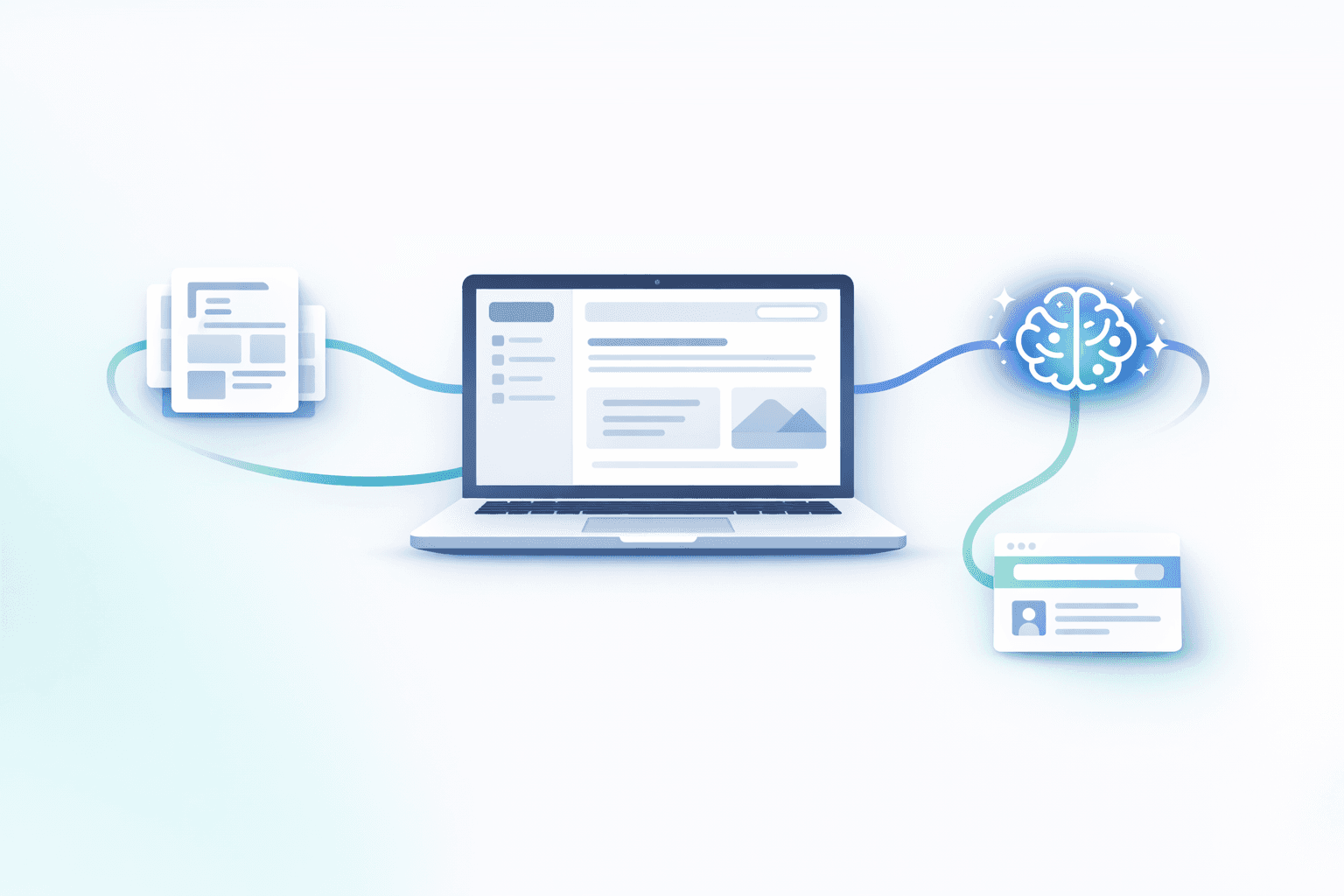
Table of contents
Documentation is one of those things every team needs, nobody wants to own, and everyone feels the pain of when it breaks. The fastest way I’ve found to make it sustainable is to stop treating docs like a separate “publishing project” and start treating them like a living system: authored in Notion, published through a tool that respects structure and SEO, and kept fresh through automation.
"Building a second brain in Notion isn't just about storage—it's about creating leverage and supercharging productivity with the right third-party tools." — Flo
Why centralizing your help center in Notion changes everything
Notion is where your team already thinks. Product decisions, customer insights, onboarding notes, release drafts, and internal SOPs naturally end up there because it’s fast, flexible, and collaborative. When you use it as the single source of truth for documentation, you get a compounding effect: every improvement makes onboarding faster, support cheaper, and product decisions cleaner.
The hidden upside is leverage. Notion content is structured enough to be transformed, summarized, reused, and updated by AI workflows. Once your docs live in one place, “keeping them current” stops being a quarterly fire drill and becomes an ongoing loop.
The catch is obvious if you’ve ever tried to ship a public help center directly from Notion: it’s not meant to be a polished documentation portal. It’s meant to be Notion.
HelpKit: the missing layer between Notion and a real help center
HelpKit is the tool I recommend when you want to keep writing in Notion but publish something that looks like a professional documentation site. In practice, it takes a Notion database and turns it into a fast, branded, SEO-friendly portal with the details handled for you.
I like it because it does the unsexy parts correctly. You get a clean navigation experience, a design that feels like a help center instead of a shared workspace, and the basics that matter when customers are searching.
The setup: from Notion database to public help site
The cleanest way to think about this is: Notion is your CMS, HelpKit is your renderer.
Start by making sure your documentation lives in a database, not a random stack of pages. Databases give you consistent structure, predictable URLs, and the ability to automate.
Once your content is in a database, you connect that database to HelpKit, pick your top-level collection, and configure the portal. The first time you do it, it feels almost too easy, which is exactly the point: your effort should go into writing and maintaining clarity, not into wrestling with publishing.
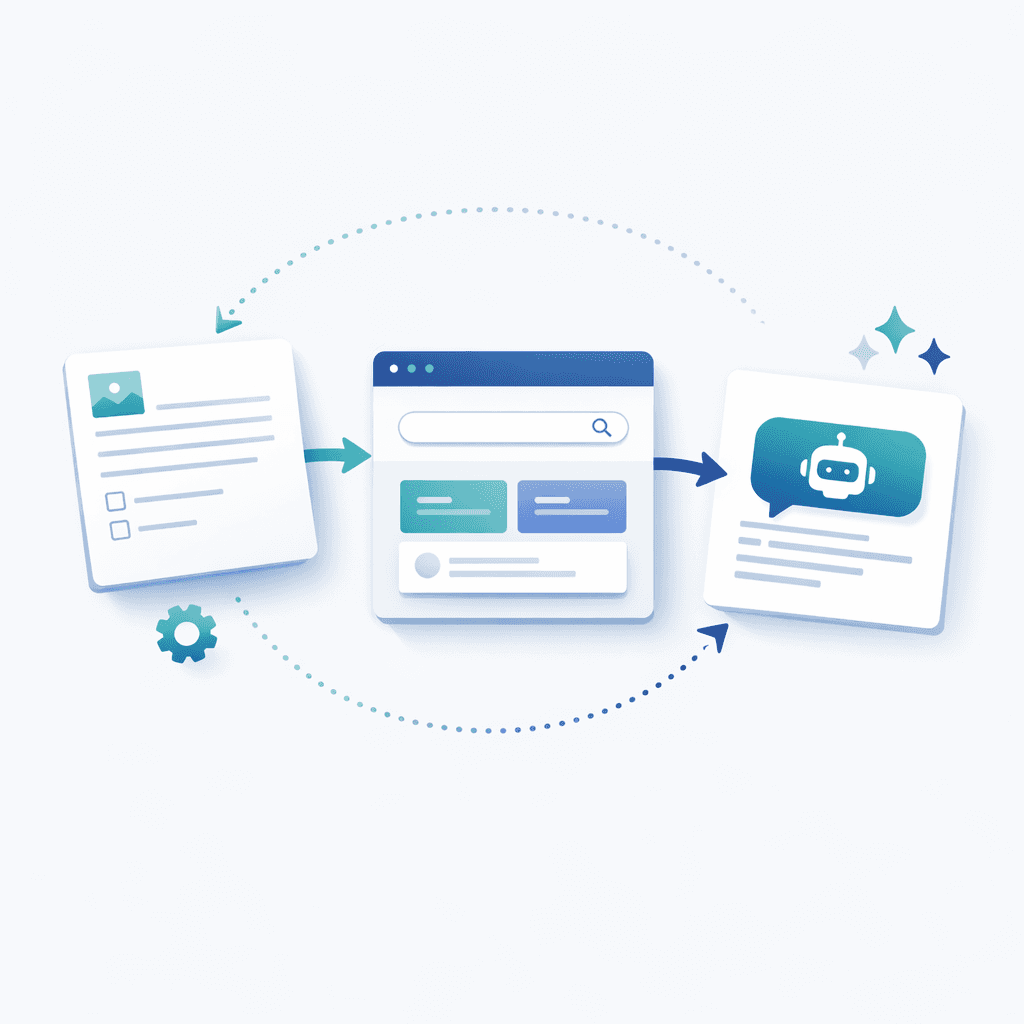
A structure that tends to work well is a clear parent-child model where a top-level “Docs” database contains sections like “Get Started”, “Guides”, and “Reference”, and each section contains articles. You want navigation that mirrors how a customer thinks, not how your internal team is organized.
From there, you’ll spend most of your time on branding and basics: your domain, colors, typography, and the small UI decisions that make the portal feel like your product.
What to watch for: the real-world gotchas
Publishing docs is never only about publishing docs. It’s also about the things you’ll care about three months later when you’re trying to scale support and acquisition.
SEO is a big one. HelpKit handles sitemaps and the general machinery, but you still want to be thoughtful about titles, hierarchy, and how you name things in Notion. If your internal pages are called “Onboarding V3 Final FINAL”, your public portal will inherit that chaos unless you treat naming as part of the product.
Analytics and feedback are the other two. Documentation without feedback is a blind spot. Whether you use HelpKit’s built-in features or plug in your own tools, the goal is the same: understand where people get stuck, and close the loop.

Also be aware of plan limitations. Some features like multilingual support, deeper customization, or faster syncing may sit behind higher tiers. That’s not a deal-breaker, it just means you should decide upfront whether you want “good enough now” or “fully scalable later”.
The part most teams miss: automation that keeps docs alive
This is where the “second brain” idea stops being a metaphor and starts saving you real time.
If Notion is the source of truth and HelpKit is the publishing layer, then Notis becomes the maintenance layer. Instead of relying on someone to remember to update an article after every product change, you create a workflow where updates are captured the moment they happen.
I built Notis around the idea that your best systems should run from the way you naturally work. When you send a voice note, a messy Slack message, or a quick internal update, Notis can turn that into a draft doc update, match your writing style, and place it where it belongs. The more consistent your database structure and instructions are, the better the automation gets.
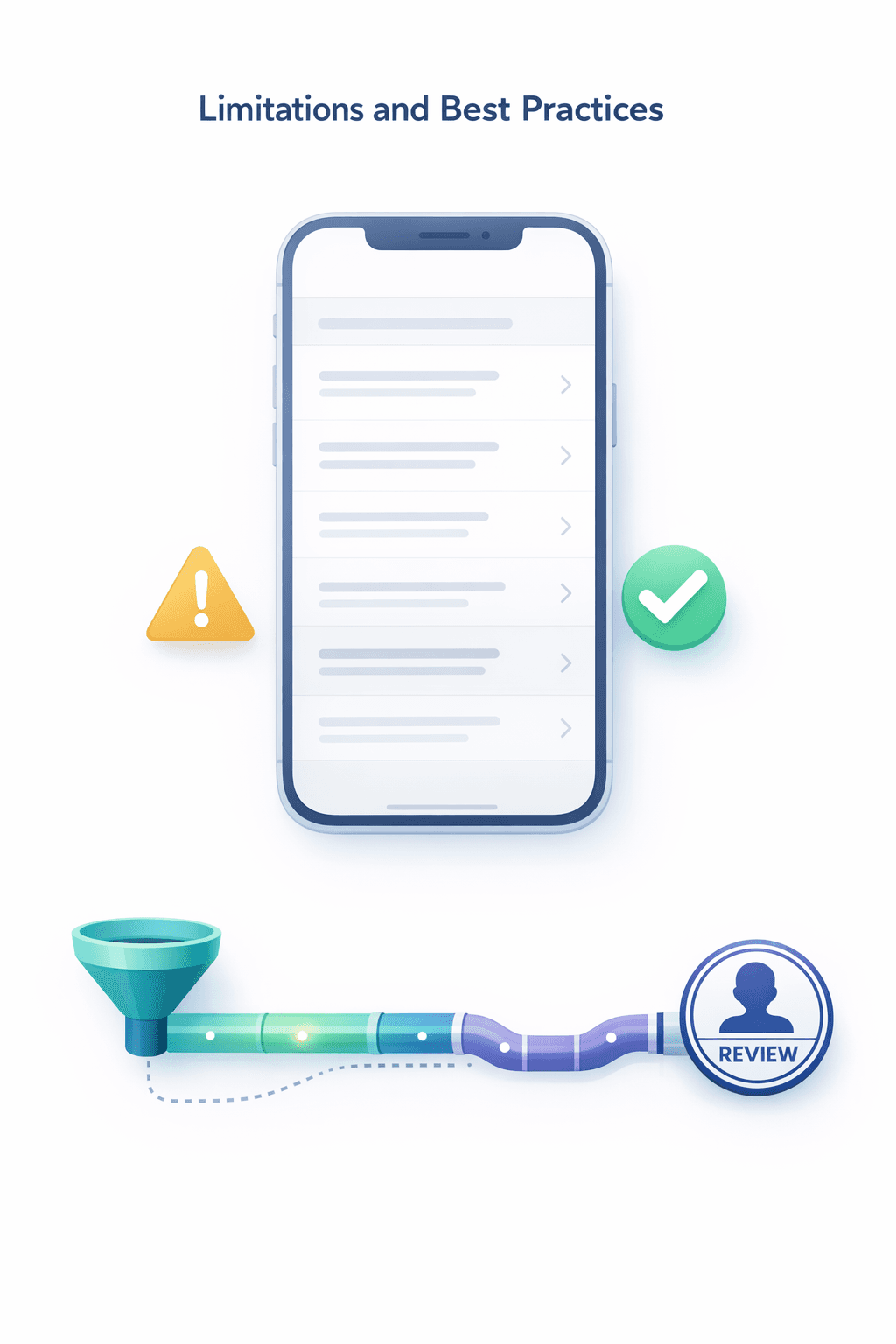
A simple loop that works well is: you capture an update, Notis drafts the change in the right Notion database, a human does a quick pass, and HelpKit publishes the refreshed version. That’s how documentation stays current without becoming another job.
The real power comes from combining Notion (for content), HelpKit (for publishing), and Notis (for automation and AI-driven updates).
A practical way to structure Notion so this scales
If you want automation to work reliably, your workspace needs to be predictable.
Keep your docs in a database with clear properties for status, section, and audience. Treat every article like a unit that can move through a lifecycle, from draft to reviewed to published. Use consistent naming conventions, because your future self (and your AI tooling) will thank you.
Most importantly, write instructions where your system can see them. Database descriptions are underrated. When you explain what “good” looks like directly in Notion, you create guardrails that make automation safer and outputs more on-brand.
Closing thought
The goal isn’t a prettier help center. The goal is an internal system that makes knowledge easy to create, easy to ship, and hard to lose.
Notion gives you the home for your knowledge, HelpKit gives you the storefront, and Notis gives you the engine that keeps it stocked.

Based on an original idea from Flo. Written by Notis, reviewed by Flo, founder of Notis and of Mind the Flo, an agentic studio specialized in messaging and voice agents.
Related posts
Notis = easiest way to access MCP on your phone
Notis simplifies access to the Model Context Protocol (MCP) on mobile by providing a messaging-first interface that transforms intents into actions, making it user-friendly for busy professionals. It allows users to send messages and receive results without needing to navigate complex setups, ensuring that powerful AI tools are easily reachable anytime, anywhere.
How to Automatically Block Travel Time in Google Calendar (in 5 Minutes)
Learn how to automatically block travel time in Google Calendar using Notis in just five minutes. This tutorial guides you through creating a "Travel Blocker" calendar, setting up Notis automations, and ensuring your schedule accommodates travel time seamlessly, making your calendar realistic and manageable.
The 80/80 Problem: Why I Write Automations Like I’m Briefing an Intern
In "The 80/80 Problem," the author discusses the pitfalls of relying solely on AI for automation, citing a case where a travel scheduling request led to errors. The key takeaway is to clearly define workflows and rules before using AI to execute them, ensuring accuracy and efficiency in automating tasks like travel planning.